Product Updates//4 min read
Change Requests: Pins Now Tidy Themselves Away
The pin tool is now called Change requests, finished pins are archived instead of cluttering your preview, and the count next to it only counts what's still to do. Here is how to place a change request, follow it, and find it again once it's done.

By Jason Gordon
Founder & CEO, Specloop

A change request in Specloop is a note pinned to the exact spot on your live site or app where you want something changed. Each one is called a pin. Release 1.299 renames the tool, tidies away finished pins and makes the count honest. This guide shows how to use it from start to finish.
Where to find it
Sign in to your portal and choose Change requests in the sidebar. On your dashboard, the Request a change card opens the same page.
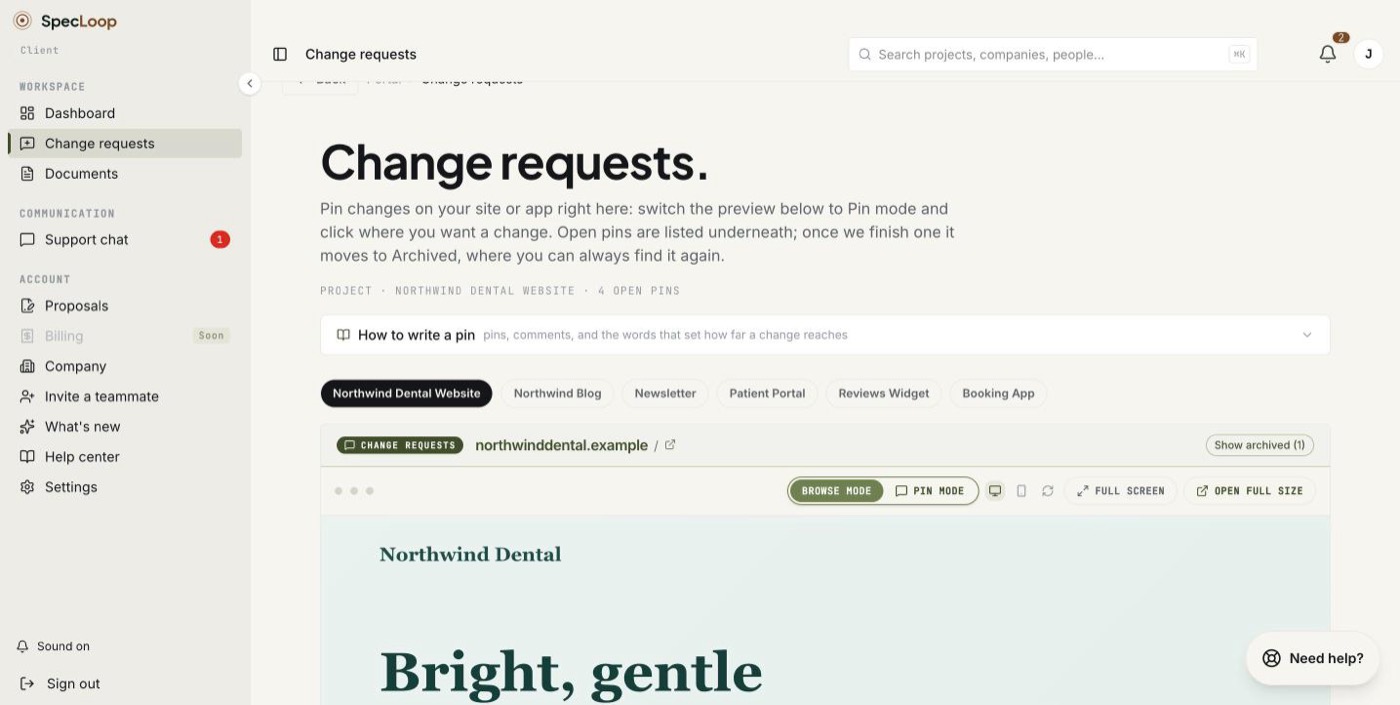
The page tells you which project you're looking at and how many pins are open. If you have more than one site or app with us, pick it from the tabs above the preview.
Place a change request
- Browse to the page. The preview starts in Browse mode, so you can scroll and click around your site as normal.
- Switch to Pin mode with the button above the preview.
- Click the exact spot you want changed. A box opens on the pin.
- Write the change in one or two lines. Attach a file if it helps, and type @ to alert a teammate.
- Press Add pin. Pin mode stays on, so you can place the next one straight away.
The full walkthrough, including the words that set how far a change reaches, is in our guide to pinning changes.

Finished pins are archived, not deleted
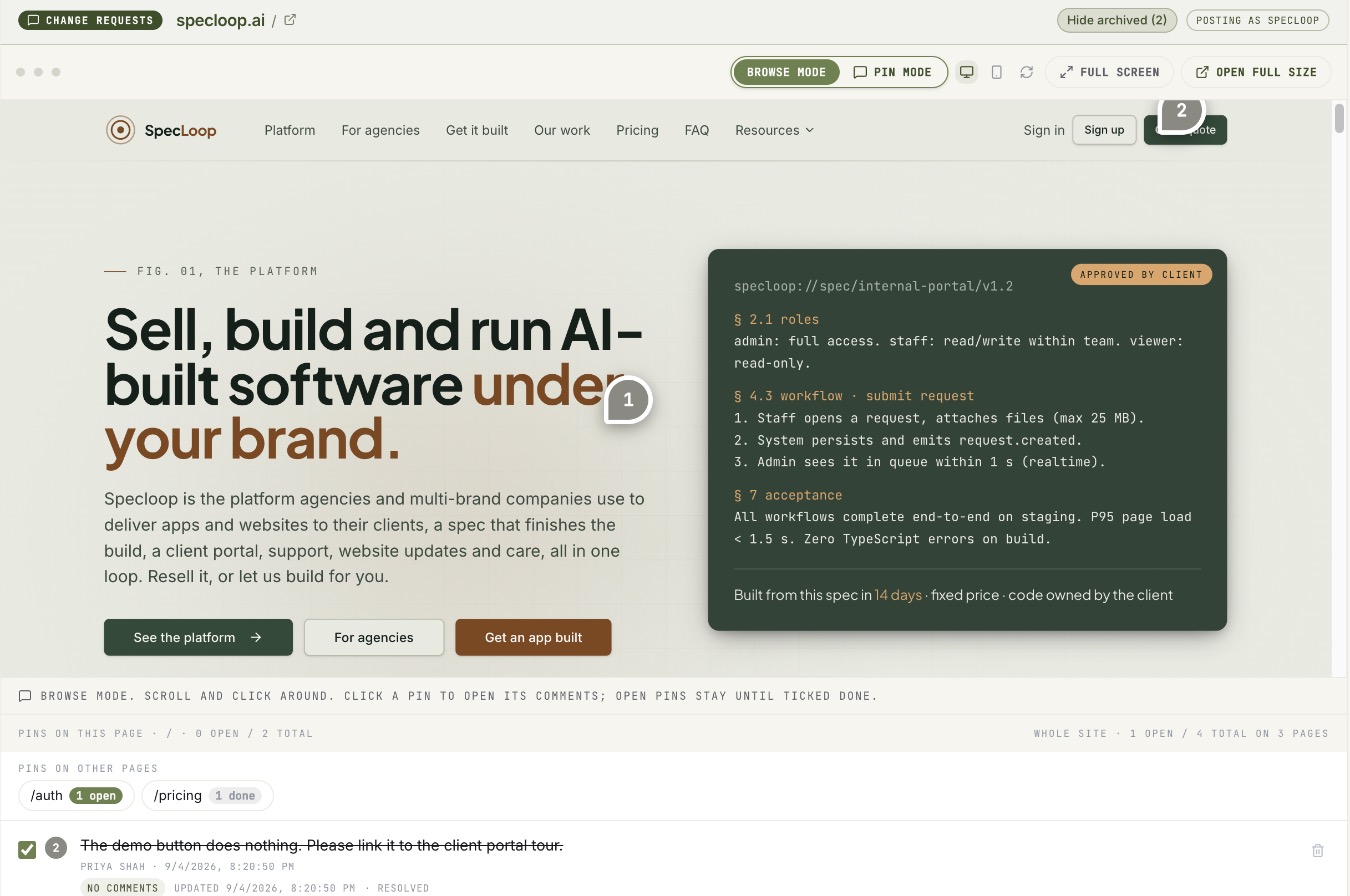
On a busy project, finished pins used to stay on the preview as grey bubbles. After a few rounds the open ones were hard to spot. Now a finished pin is archived:
- The preview shows open pins only. Press Show archived in the bar above the preview to bring finished pins back onto the page. The button shows how many there are, and Hide archived puts them away again.
- Nothing is deleted. Every archived pin keeps its replies, its files and its number.
- A pin opened from a link always shows, finished or not.
For our team: the Change requests list
Inside Specloop, the team sees every client's pins on one Change requests page, newest first, grouped by project.
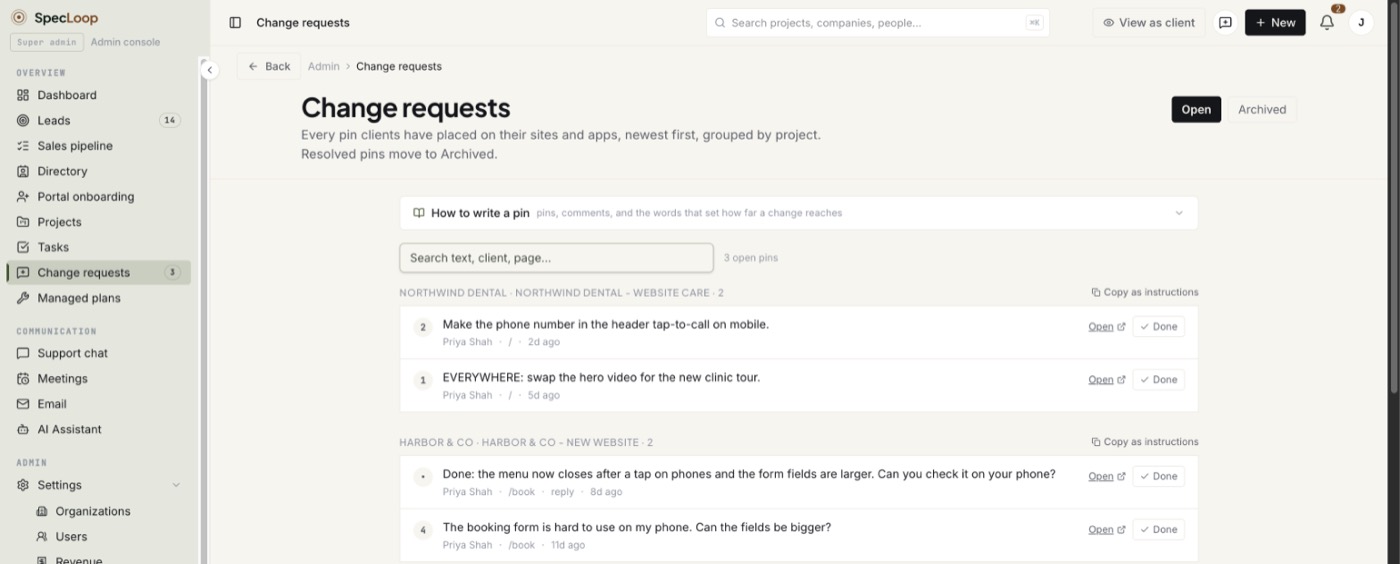
- Open jumps to the pin on the live preview. Done marks it finished, which archives it.
- Copy as instructions copies a project's open pins as one clear list for whoever is doing the work.
- Search finds a pin by its text, the client or the page.
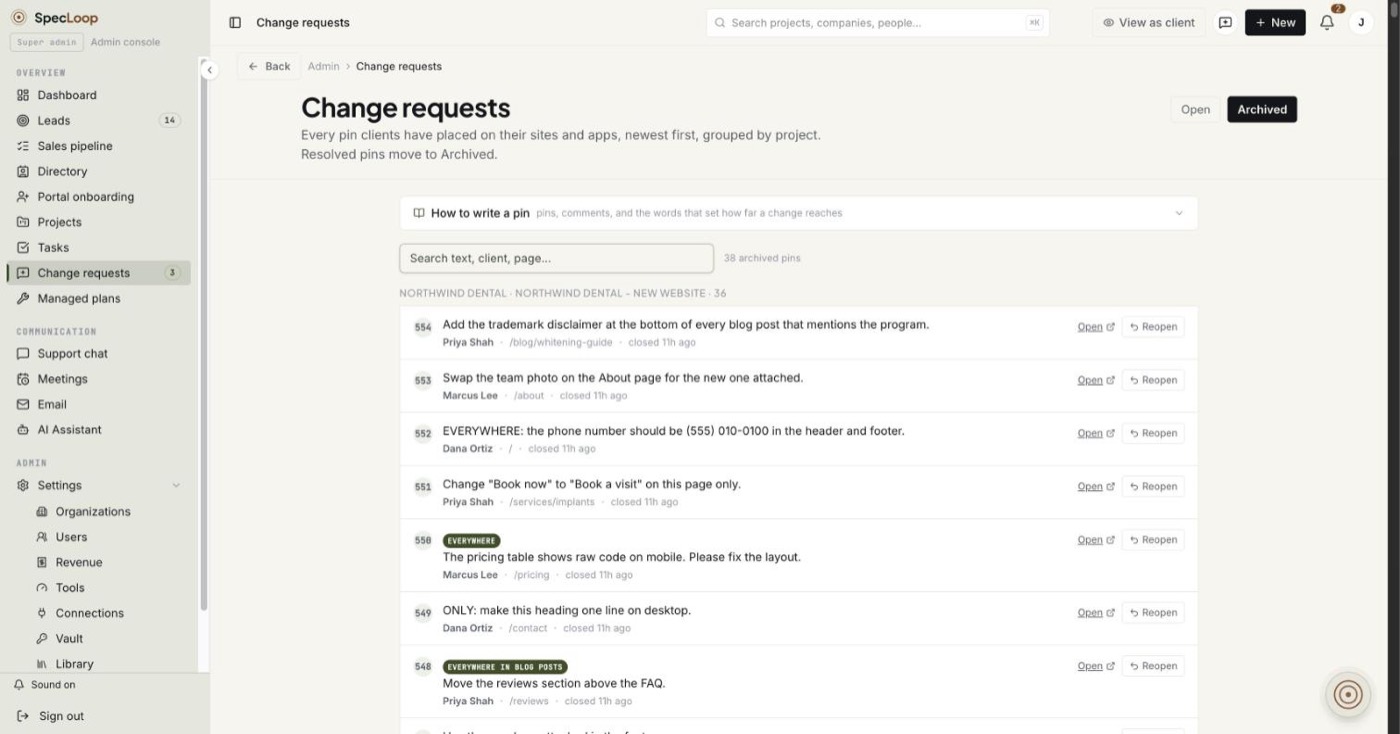
- The Archived tab lists finished pins, most recently closed first, each with the date it was closed and a Reopen button if something isn't quite right.
Counts you can trust
The number next to Change requests used to count every reply on every pin, which made it look as if far more was waiting than really was. It now counts open pins only. If it says 4, there are four things still to do.
Talking to us, without guessing who answers
On your portal home, the "Ask us something" and "Report a problem" cards both opened the same chat, so they're now one card: Message our team. A person on our team answers, not a bot.
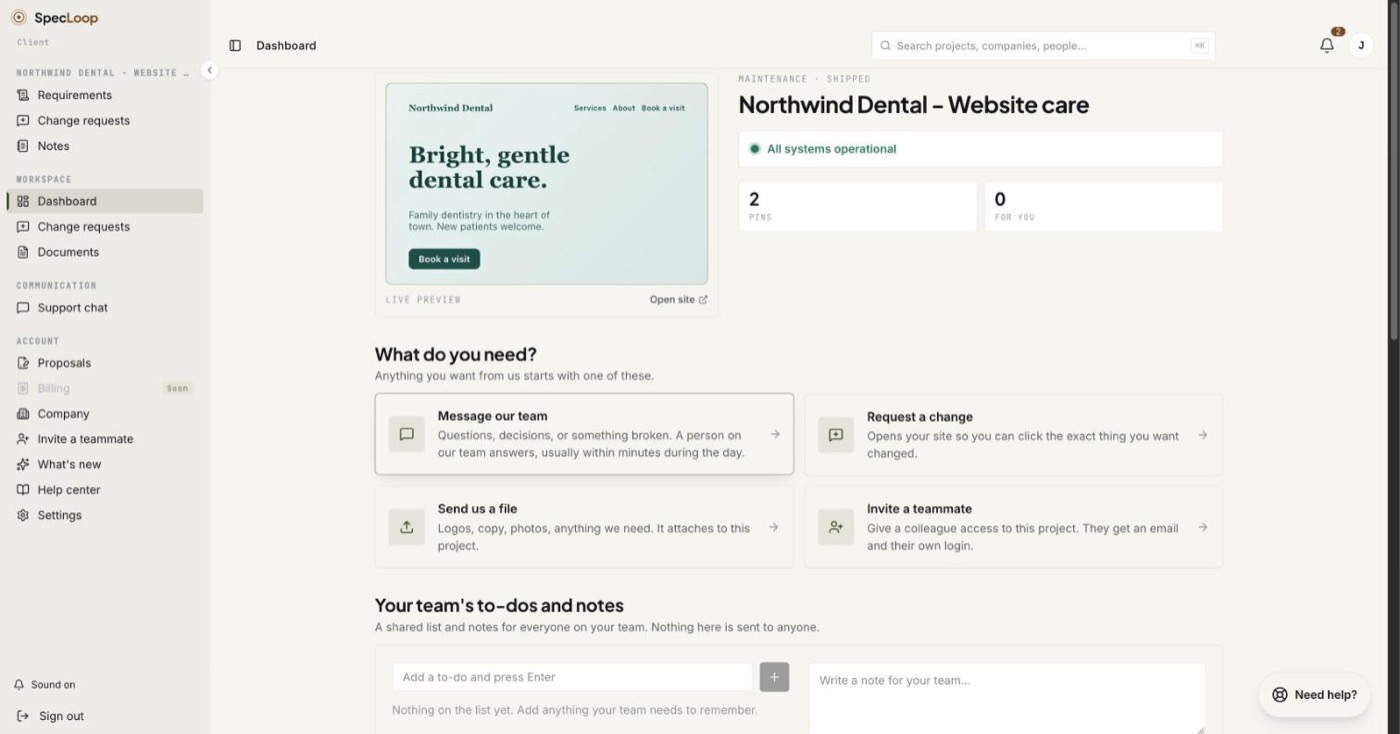
Use chat for questions and decisions. For anything you can see on a page, a pin is quicker, because it's attached to the exact spot. You can see how chat and pins fit into ongoing care on the care page.
Why the name changed
The tool was called Markup, then Loops. Neither told someone new what it was for. Change requests does. How you place and reply to pins hasn't changed, and your existing pins, their numbers, replies and saved links all still work.
Frequently asked
Questions people ask about this
- No. Finished pins are archived, not deleted. Press Show archived on the preview, or open the Archived list, to see them with their full threads.
About the author
Jason Gordon
Founder & CEO, Specloop
Jason Gordon is the founder of Specloop, a spec-driven AI development studio that builds production-grade business applications from a complete specification, in weeks, at flat rate, with 100% code ownership. He also builds GeoTest, a free tool that scores how visible a site is to AI search engines. He writes about AI search, spec-driven development, and why most AI builds never reach production.
Follow Jason on LinkedIn →Keep reading
Related posts

Product Updates
Activity That Keeps You Posted, Automatically
Your project's Activity feed now fills itself. Every update to your site or app shows up as one plain-English line, every launch comes with a link, and finished change requests, calls and documents appear as they happen. Each Monday you get a one-line summary of the week. Here is where to find it and how to read it.

Product Updates
Client Chat That Lives Inside the Project, Not in Slack
Every Specloop project has its own chat, built into the same portal as the site preview and Change requests. Here is how to use it step by step, what it changes for a client and for the team, and why a shared Slack or Teams channel was never the right place for client work.

Product Updates
Change Requests: Point at What You Want Changed
The slowest part of any website project is feedback: screenshots with arrows, emails that say 'the button near the top', and changes that land in the wrong place. Change requests replace all of it with a pin on the live site. Here is how to use them, step by step.

Product Updates
Calls That File Themselves at the Bottom of Your Chat
Calls in your project chat used to leave their card where the call began, so the summary ended up buried above everything said since. Now the card moves to the bottom when the call ends, and again when the transcript and summary are ready. Here is how to start a call and use what it leaves behind.
Next step
Want a spec for your build?
We write the full specification before any code is generated, then ship in 30–60 days at one flat rate. You own every line.