Product Updates//Updated /6 min read
Client Chat That Lives Inside the Project, Not in Slack
Every Specloop project has its own chat, built into the same portal as the site preview and Change requests. Here is how to use it step by step, what it changes for a client and for the team, and why a shared Slack or Teams channel was never the right place for client work.

By Jason Gordon
Founder & CEO, Specloop
Most client work runs on two tools that don't know about each other. The work lives in a project tool. The conversation lives in email, WhatsApp, a shared Slack channel, or a Teams chat someone set up in a hurry. Every time a client asks "where are we on the contact form?", someone has to go and find out, then come back and answer.
Specloop puts the conversation inside the project. The chat is in the same portal as the live preview of the site, the Change requests pins and the files. The person asking and the work they're asking about are one click apart.
Open the chat
- Sign in to your portal.
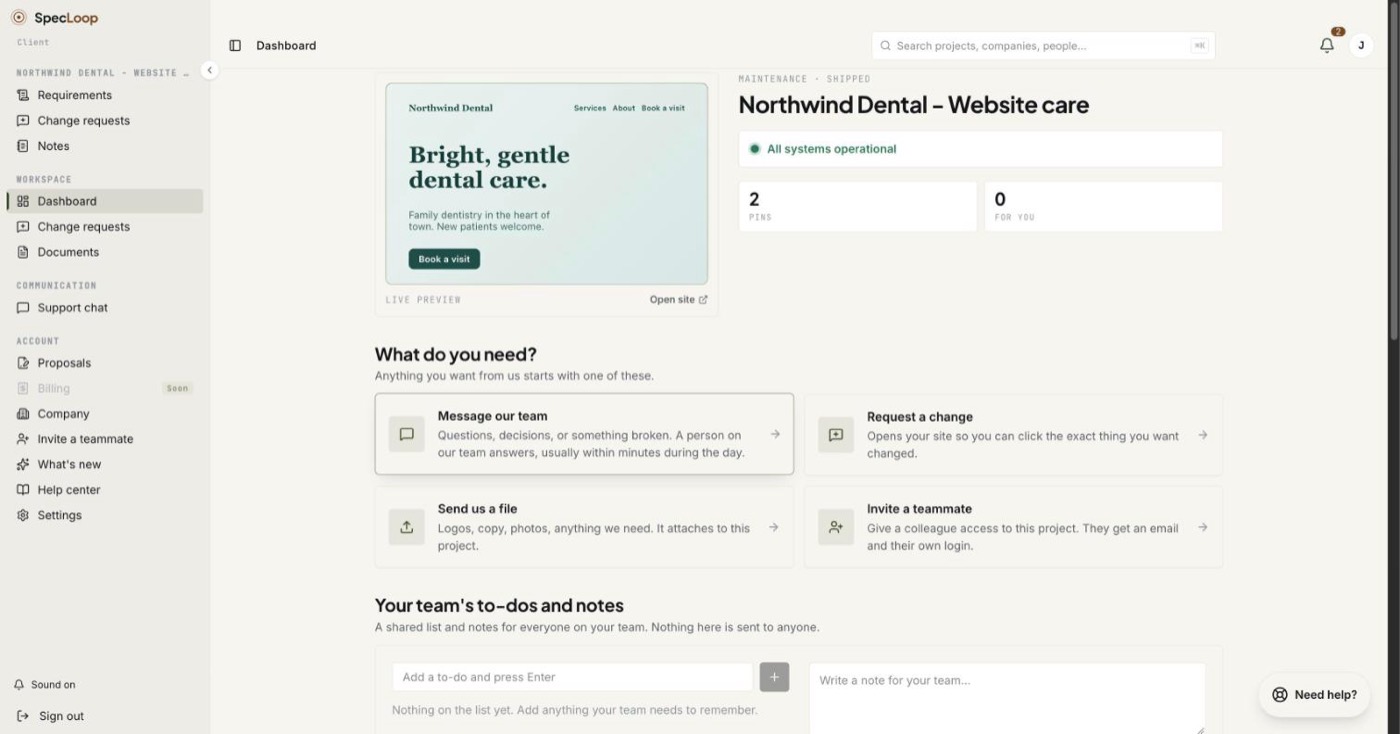
- Press Message our team on your home page, or choose Support chat in the sidebar.
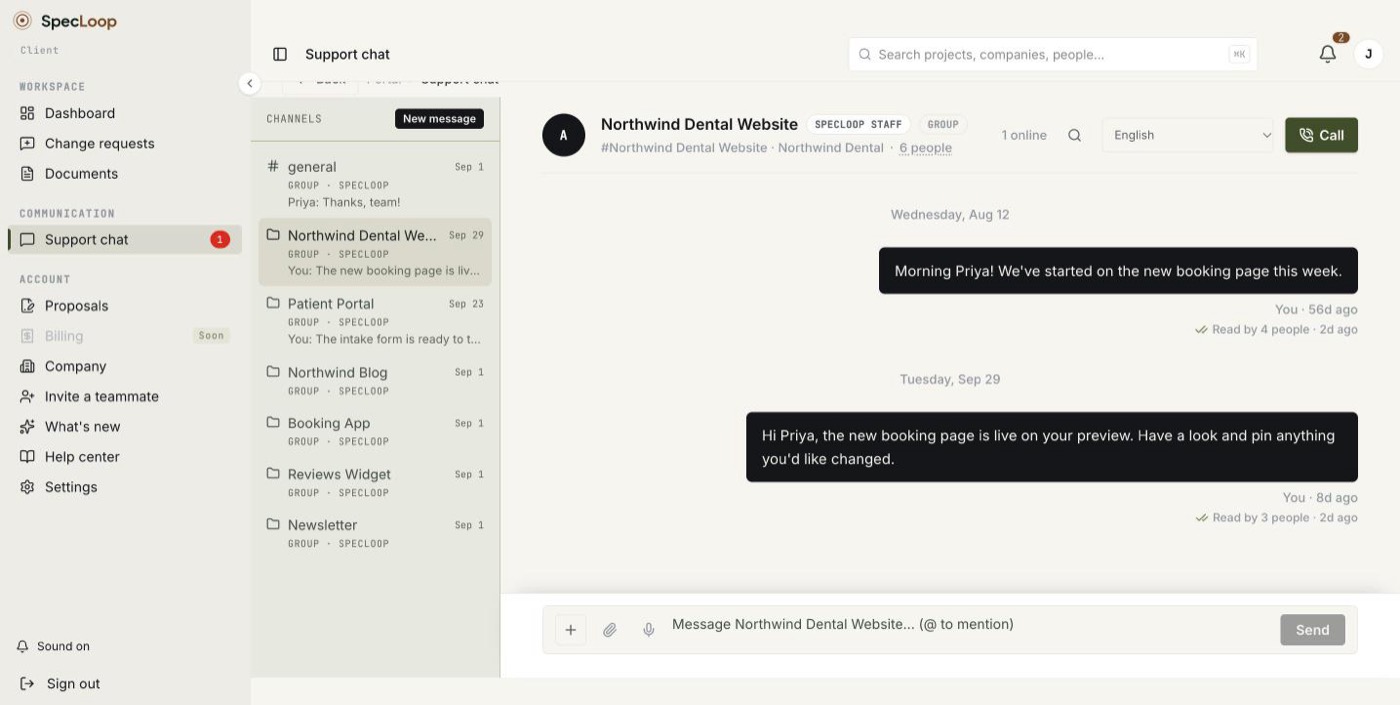
- Pick the conversation from the list on the left: the thread for one project, your company's general thread, or a direct message.
One thread per project
Every project gets its own chat thread, and every client company gets a general thread for anything that isn't tied to one build. On top of that, anyone can message one person directly, or pick a few people and start a group chat, name it, and add or remove people later.
That structure matters more than it sounds. When a client runs three projects with us, the conversation about the booking app doesn't get buried under the conversation about the marketing site. Open the project and you are in its thread, with its history, from the first message.
Send a message, step by step
- Type in the box at the bottom of the thread and press Enter. Shift and Enter adds a new line.
- Attach a file with the paperclip, or drag it onto the chat. Drop several and they go one after another.
- Reply to one message by hovering over it (or tapping it on a phone) and choosing Reply.
- Type @ and a name to alert someone.
- Check the tick. "Sent" turns into "Read by" with a name and a time once it's seen.
Built for clients, not borrowed from a team tool
Slack and Teams are excellent for a company talking to itself. Bringing a client in is where they get awkward. In Slack, the client needs to join your workspace as a guest or connect theirs through Slack Connect, which needs a paid plan on your side. In Teams, a guest has to switch organizations to see your chat. Either way the client ends up with another app, another login and another place to check.
In Specloop the client already has the portal, because that's where they review their site and approve their work. Chat is simply there. Nothing to install, no seat to buy for them, no invite to accept in a different product.
It also works the way people expect a chat to work in 2026:
- Reply to one message. Quote a specific message and tap the quote to jump back to the original.
- React with a quick 👍 ✅ 🎉 or one of the others, so "got it" doesn't need a message of its own.
- @mention someone and they're notified.
- Attach files up to 25 MB: images, video, audio, PDFs, Word, Excel, PowerPoint, CSV and zip files.
- See who has read it. Every message shows "Sent" or "Read by" with a time, so nobody has to ask "did you see my message?"
- See who is here. Presence shows who is online now, and a typing indicator shows when someone is answering.
- Talk instead of typing. Tap the microphone and speak. The text is cleaned up before it goes in the box, so you can send it or edit it first.
Clients can also route a message to the right people with one tap (development support, a design change, billing, or sales and scope), and if the team hasn't answered within two hours, the thread says so, so a message never quietly sits unread.
Calls that start in the thread and end up in it
Some things are faster to say than to type. Every thread has a Call button. It opens a video call with screen share, and anyone outside the portal can be invited to join with a link.
Before the call starts you pick the language being spoken (English, Spanish, English and Spanish mixed, Serbian, Montenegrin, Croatian and Bosnian, German, French, Italian or Portuguese). The call is transcribed, and when it ends a written summary lands back in the same thread. Live translation is available during the call too.
The chat stays open during the call. A link or a spelling passed across mid-call is still in the thread when the call is over, in the place you'd look for it. For the team, a call summary can be added to the project's notes in one click, internal or visible to the client.
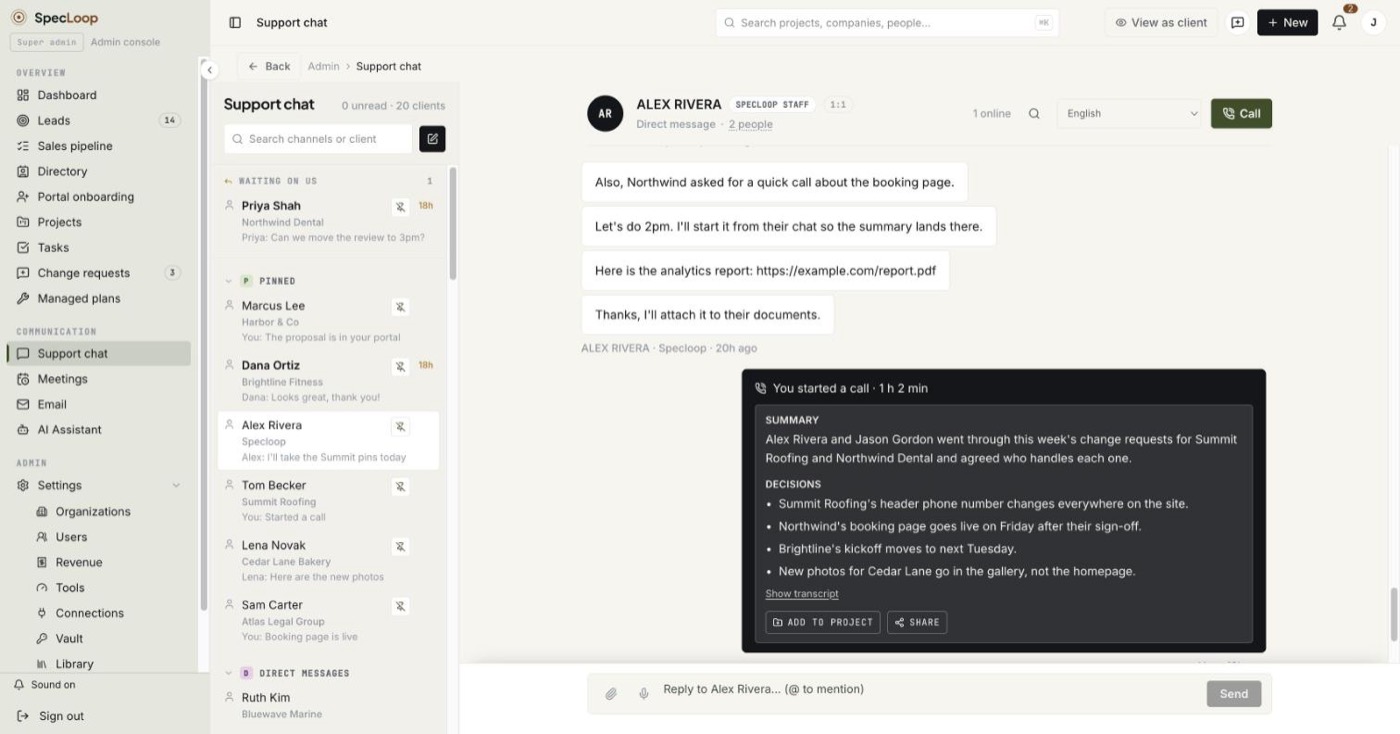
When the call ends, its card moves to the bottom of the thread, so the summary is the newest thing you see. There's more on that in our post on calls that file themselves.
This is the part a shared Slack channel can't do. The call, what was said on it, and what was decided all end up in the project they were about, instead of in someone's memory.
Turn a message into a task
Requests often start as a sentence in a conversation: "can we add the new price to the menu page?" In most setups that sentence has to be copied into a project tool by hand, or it's forgotten.
In Specloop the team can hover over any message and choose Create task. The task is prefilled from the message, with who said it and when, lands on the project's task list, and can be given an owner and a due date on the spot. The request goes from conversation to the work list in two clicks, and the task keeps a link back to the message it came from.
Everything is searchable
One search box, or ⌘F, covers the whole history of a thread: every message, every call summary and every transcript. "What did we agree about the pricing page in August?" becomes a search, not a scroll.
You hear about it wherever you are
New messages raise a badge in the portal and an alert in the app. Push notifications reach the phone or desktop even when the tab is closed, and you can choose the sound, separately for messages and for everything else, so a message from a person never sounds like a system alert.
Tips
- Use the project's own thread. A question about the booking app belongs in the booking app's thread, so the answer stays with that project.
- Point, don't describe. For anything you can see on a page, a pin in Change requests is quicker than a message, because it sits on the exact spot.
- Copy before you forward. Every message has a copy button, so you can paste an answer into an email word for word.
What this changes
For a client, the difference is fewer places to look. They review the site, pin a change, ask a question and join a call in one portal, and every answer stays attached to the project it's about.
For the team, the difference is context. The message, the page it refers to, the pins on that page and the history of every call sit side by side. Nobody has to reconstruct a decision from three apps.
That's the point of building chat into the project instead of bolting a team tool onto client work: the conversation and the work finally live in the same place.
Frequently asked
Questions people ask about this
- No. Chat is part of the Specloop portal the client already uses to review their project. There is nothing to install and no extra seat to buy.
About the author
Jason Gordon
Founder & CEO, Specloop
Jason Gordon is the founder of Specloop, a spec-driven AI development studio that builds production-grade business applications from a complete specification, in weeks, at flat rate, with 100% code ownership. He also builds GeoTest, a free tool that scores how visible a site is to AI search engines. He writes about AI search, spec-driven development, and why most AI builds never reach production.
Follow Jason on LinkedIn →Keep reading
Related posts

Product Updates
Meet the Board, and a Lighter, Friendlier Specloop
Your portal has a new page, the Board: every update, report and walkthrough video from our team in one place, with comments right under each post. The whole portal is lighter and friendlier, your dashboard shows your project plan and your AI search score, and chat now scrolls back through your full history.
Product Updates
Change Requests: Point at What You Want Changed
The slowest part of any website project is feedback: screenshots with arrows, emails that say 'the button near the top', and changes that land in the wrong place. Change requests replace all of it with a pin on the live site. Here is how to use them, step by step.
Product Updates
Calls and Conference Calls in Specloop, From Ring to Summary
Every conversation in Specloop has a Call button. It rings everyone in the thread on every device they have open, opens video and screen share in its own tab, translates as people talk, and lets you bring in anyone with a link. When the call ends, the transcript and summary land in the chat. Here is how each part works.
Product Updates
Scheduling, Booking Links and Meeting Rooms, All in the Dashboard
Every member of a Specloop team now has a booking page and a permanent meeting room. Guests pick a time in their own time zone, bookings go on your Google Calendar, your busy times are blocked out, and you can drop your booking link into any email or your signature in one click. Here is how to set it up and what happens after someone books.
Next step
Want a spec for your build?
We write the full specification before any code is generated, then ship in 30–60 days at one flat rate. You own every line.