Product Updates//3 min read
Calls and Conference Calls in Specloop, From Ring to Summary
Every conversation in Specloop has a Call button. It rings everyone in the thread on every device they have open, opens video and screen share in its own tab, translates as people talk, and lets you bring in anyone with a link. When the call ends, the transcript and summary land in the chat. Here is how each part works.

By Jason Gordon
Founder & CEO, Specloop

Calls happen inside Specloop now, in the same conversation as the project they're about. You press Call, the people in that thread are rung wherever they are, and when you hang up the transcript and a short summary arrive in the chat. Nothing to install, no meeting link to hunt for, and no notes to write up afterwards.
Start a call from any conversation
- Open Support chat and choose the conversation for the project.
- Check the language picker next to the Call button and pick the language you'll be speaking. English is the default. Spanish, German, French, Italian, Portuguese and Serbian (which also covers Montenegrin, Croatian and Bosnian) are there, plus a mixed English and Spanish option.
- Press Call.
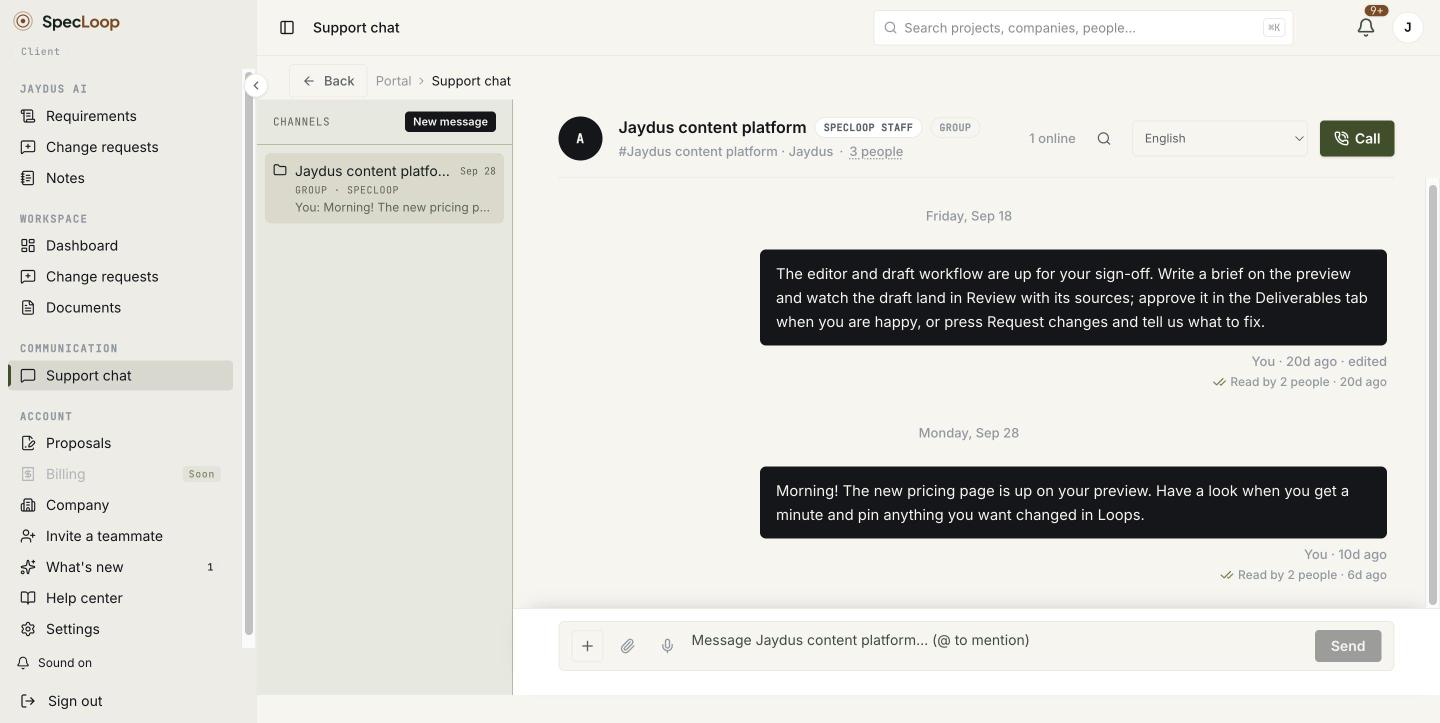
The call opens in its own tab with video and screen share, so the portal stays usable while you talk. You can open a document, check a pin or look at the preview without leaving the call.
Everyone in the thread gets rung
A call isn't a chime and a toast you might miss. Everyone in the conversation gets a full-screen incoming call with Answer and Decline, on every tab and device where they have Specloop open. If they've allowed notifications, it reaches them even with no Specloop tab open.
Answer on your laptop and your phone stops ringing at the same moment, along with any other tab. Decline works the same way.
During the call
- Screen share is built in. Share a tab, a window or your whole screen.
- Translate opens a panel beside the video that shows every sentence in your own language, with who said it and the original underneath. Each person picks their own language, so a call between English and Montenegrin speakers reads naturally for both sides. You can copy the translated transcript at any point.
- Chat opens the project conversation next to the call. Anything typed there, a link or a spelling or an address, stays in the thread after the call instead of disappearing with it.
Bring in someone who isn't in Specloop
Two ways, both without an account:
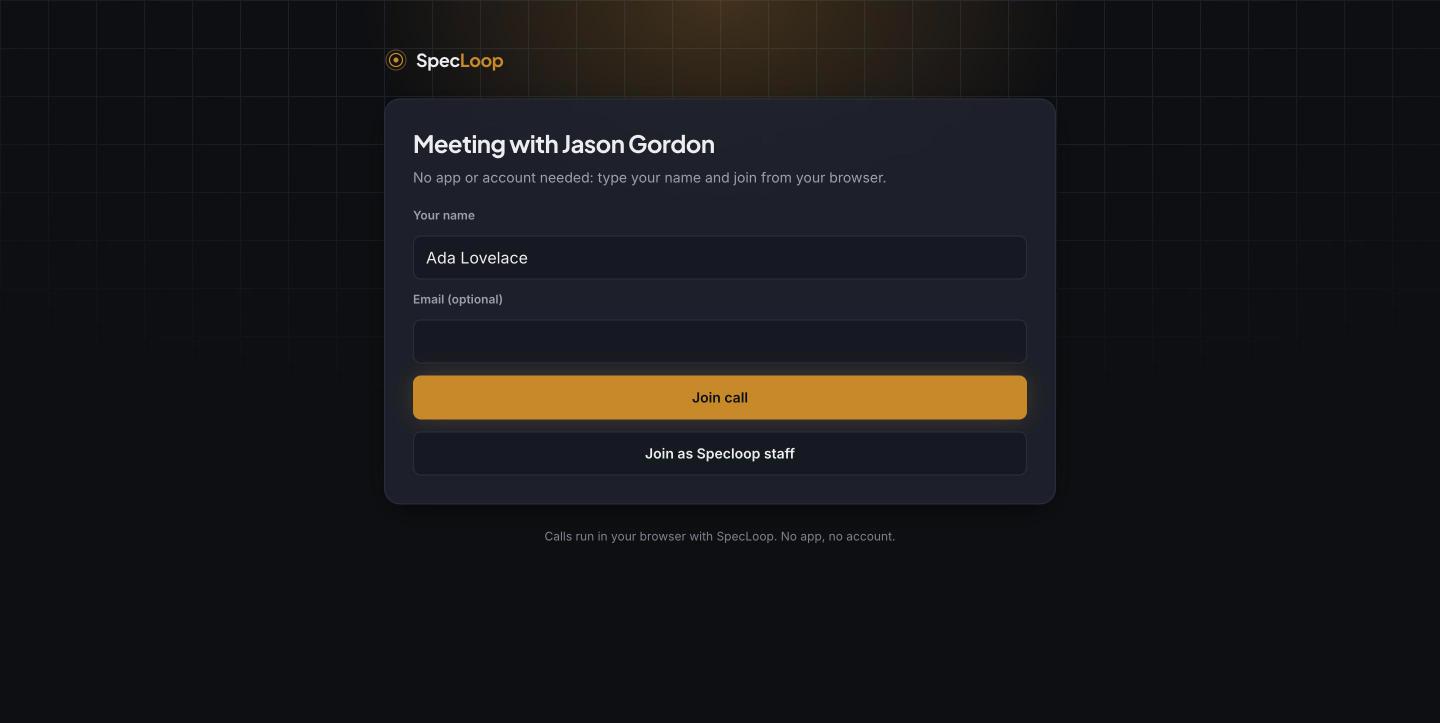
- Invite by link. During a call, press Invite by link and send it to anyone. They type their name and join in the browser. The link stops working when the call ends.
- A meeting room link. Every member of the team has a permanent room at specloop.ai/meet/their-name, which works in any calendar invite. Guests type their name and join. There's more on rooms and booking pages in our post on scheduling and booking links.
After the call
When the call ends, its card moves to the bottom of the chat. A few minutes later the transcript and summary arrive on the same card: what was discussed, the decisions made, and the action items with who owns each one. Show transcript opens the full conversation labelled by speaker, and the copy button copies the summary for an email or a document.
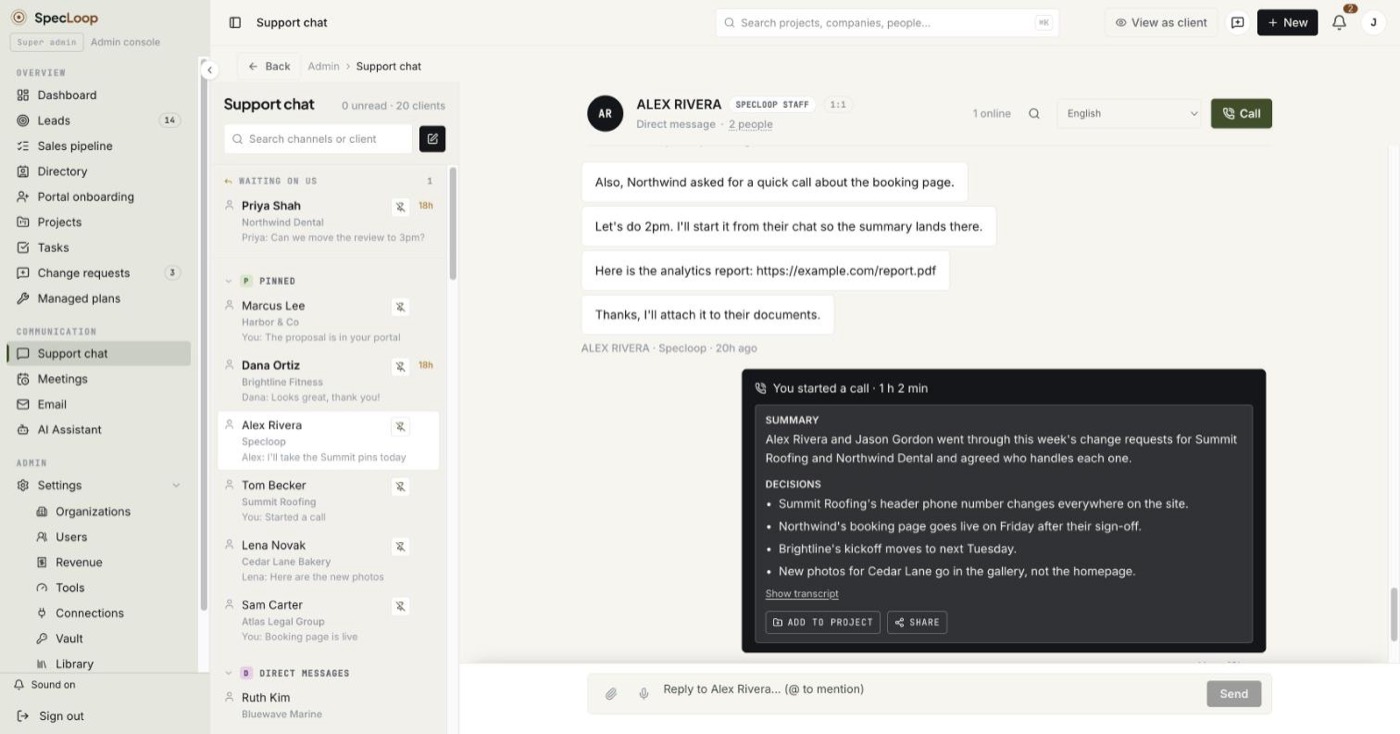
Calls with a client are filed in that client's conversation, so the record sits with the project rather than in someone's inbox. We covered the card itself in more detail in calls that file themselves.
Tips
- Start the call from the right conversation. The summary lands where the call started.
- Pick the language before you press Call. It sets how the transcript is written, and the summary follows it.
- Say decisions out loud. "So we're agreed, the booking page goes live Friday" becomes a clean line under Decisions.
- Allow notifications once. Then a call reaches you even when Specloop isn't open.
Frequently asked
Questions people ask about this
- No. Calls run in the browser. People in Specloop answer from the incoming call screen, and guests join from a link by typing their name.
About the author
Jason Gordon
Founder & CEO, Specloop
Jason Gordon is the founder of Specloop, a spec-driven AI development studio that builds production-grade business applications from a complete specification, in weeks, at flat rate, with 100% code ownership. He also builds GeoTest, a free tool that scores how visible a site is to AI search engines. He writes about AI search, spec-driven development, and why most AI builds never reach production.
Follow Jason on LinkedIn →Keep reading
Related posts

Product Updates
Calls That File Themselves at the Bottom of Your Chat
Calls in your project chat used to leave their card where the call began, so the summary ended up buried above everything said since. Now the card moves to the bottom when the call ends, and again when the transcript and summary are ready. Here is how to start a call and use what it leaves behind.

Product Updates
Start a Screen Recording in One Click, From Anywhere
Recording a quick video used to start from New, then Record a video. From release 1.350 there is a Record button at the top of the sidebar, an Option+R shortcut on every page, and a link, specloop.ai/record, that opens the recorder straight away from a bookmark, the dock or a launcher like Raycast.

Product Updates
Activity That Keeps You Posted, Automatically
Your project's Activity feed now fills itself. Every update to your site or app shows up as one plain-English line, every launch comes with a link, and finished change requests, calls and documents appear as they happen. Each Monday you get a one-line summary of the week. Here is where to find it and how to read it.
Product Updates
Client Chat That Lives Inside the Project, Not in Slack
Every Specloop project has its own chat, built into the same portal as the site preview and Change requests. Here is how to use it step by step, what it changes for a client and for the team, and why a shared Slack or Teams channel was never the right place for client work.
Next step
Want a spec for your build?
We write the full specification before any code is generated, then ship in 30–60 days at one flat rate. You own every line.