Product Updates//3 min read
Record Your Screen in Specloop and Show Us What You Mean
Some things are quicker to show than to type. Specloop now records your screen and your voice, for up to ten minutes, from Support chat, any change request or the new Videos page. Nothing to install. The recording lands where you started it and in your project's Videos library.

By Jason Gordon
Founder & CEO, Specloop
Describing a problem on a page in writing takes a paragraph and still gets misread. Showing it takes thirty seconds. From release 1.339 you can record your screen and your voice inside Specloop, and the video goes straight to the people working on your project.
There is nothing to install and no separate video account. It runs in your browser, in the same place as your project chat and your change requests.
Where to record
- Support chat. Next to the paperclip there is a Record screen button. The finished video is posted into the conversation with a player, so everyone in the thread can watch it right there.
- Change requests. Every pin and reply has a Record screen option. Point at the spot, then talk through what you want changed, which is often clearer than a written note.
- Videos. A new page in your sidebar keeps every recording for the project, newest first. Record a video at the top starts a new one.
How a recording works
- Press Record screen or Record a video. A short panel explains the options and lets you turn your microphone on or off.
- Press Start recording. Your browser asks what to share: your entire screen, one window or one tab. Pick Entire screen if you want to switch between apps while you talk, and tick Share audio if the sound on your screen should be included.
- Talk and click as you normally would. A small bar at the top of Specloop shows the time and lets you pause, resume, stop or throw the take away.
- Stop when you're done. You see the recording straight away, and can save it, download a copy or record again.
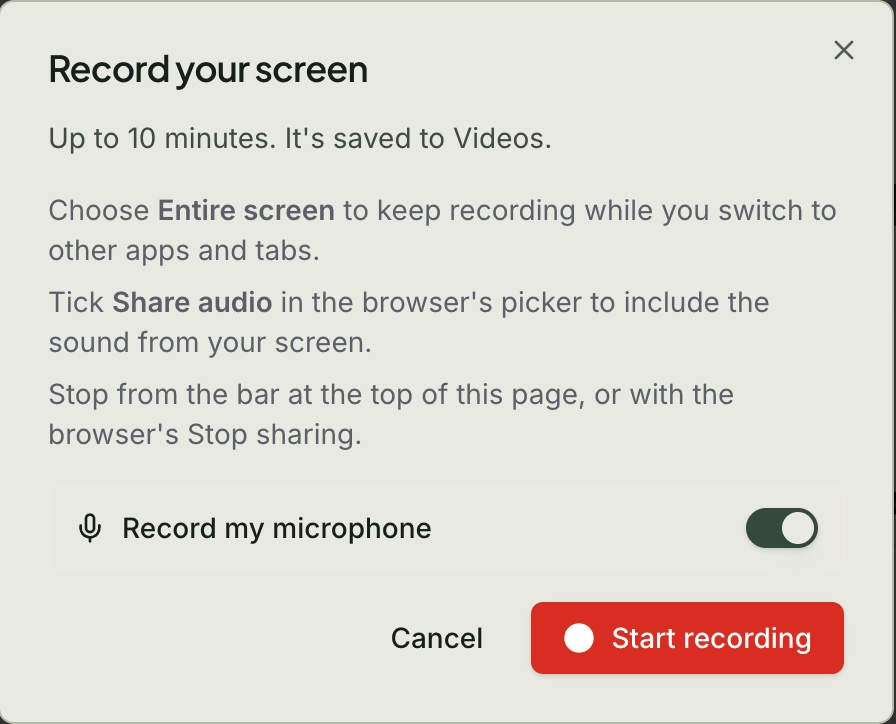
A recording can run for up to ten minutes. A countdown appears near the end, and at ten minutes it stops by itself and keeps everything recorded so far. Ten minutes covers a full walkthrough of a page or a feature; for anything longer, a call is usually the better tool.
The Videos library
Every recording is kept in Videos, for the project you're looking at. Click one to watch it, copy a link to it, download it, or delete one you made. Recordings posted in the project's conversation or on its change requests show up here too, so you don't have to scroll back to find them.
When we record a video for you, it appears in your library as soon as we share it with you.
Share a recording
Open a recording you made and press Share. Turn on Anyone with the link can watch and you get a link that plays the video in any browser, no Specloop account needed. Send it by email, post it to LinkedIn, X, Facebook or WhatsApp, or copy it. Pasted into a message, the link shows the video's title and a preview picture.
Turn the switch off and the link stops working straight away, for everyone who has it. Turn it on again and you get a new link.
Forward a message or a recording
Every message in Support chat has a Forward button. Pick another conversation and a copy lands there, marked with who originally sent it. Files and recordings come along, and the people in that conversation can open them. Nobody outside it can.
Tips
- Record from the place it belongs. A recording made on a change request stays with that request, and one made in chat lands in that conversation.
- Say what you're looking at. "On the pricing page, this button should go to the booking form" makes the video useful without the pin.
- Shorter is better. One recording per issue is easier to act on than one long video covering everything.
- Use a computer. Phones and tablets can't record their screen in a browser, so the button only appears on a laptop or desktop.
Frequently asked
Questions people ask about this
- No. Recording runs in your browser. The first time, your browser asks which screen, window or tab to share; on a Mac you may also need to allow screen recording for your browser in System Settings.
About the author
Jason Gordon
Founder & CEO, Specloop
Jason Gordon is the founder of Specloop, a spec-driven AI development studio that builds production-grade business applications from a complete specification, in weeks, at flat rate, with 100% code ownership. He also builds GeoTest, a free tool that scores how visible a site is to AI search engines. He writes about AI search, spec-driven development, and why most AI builds never reach production.
Follow Jason on LinkedIn →Keep reading
Related posts
Product Updates
Meet the Board, and a Lighter, Friendlier Specloop
Your portal has a new page, the Board: every update, report and walkthrough video from our team in one place, with comments right under each post. The whole portal is lighter and friendlier, your dashboard shows your project plan and your AI search score, and chat now scrolls back through your full history.
Product Updates
Start a Screen Recording in One Click, From Anywhere
Recording a quick video used to start from New, then Record a video. From release 1.350 there is a Record button at the top of the sidebar, an Option+R shortcut on every page, and a link, specloop.ai/record, that opens the recorder straight away from a bookmark, the dock or a launcher like Raycast.
Product Updates
Scheduling, Booking Links and Meeting Rooms, All in the Dashboard
Every member of a Specloop team now has a booking page and a permanent meeting room. Guests pick a time in their own time zone, bookings go on your Google Calendar, your busy times are blocked out, and you can drop your booking link into any email or your signature in one click. Here is how to set it up and what happens after someone books.
Product Updates
Calls That File Themselves at the Bottom of Your Chat
Calls in your project chat used to leave their card where the call began, so the summary ended up buried above everything said since. Now the card moves to the bottom when the call ends, and again when the transcript and summary are ready. Here is how to start a call and use what it leaves behind.
Next step
Want a spec for your build?
We write the full specification before any code is generated, then ship in 30–60 days at one flat rate. You own every line.