Product Updates//5 min read
Scheduling, Booking Links and Meeting Rooms, All in the Dashboard
Every member of a Specloop team now has a booking page and a permanent meeting room. Guests pick a time in their own time zone, bookings go on your Google Calendar, your busy times are blocked out, and you can drop your booking link into any email or your signature in one click. Here is how to set it up and what happens after someone books.

By Jason Gordon
Founder & CEO, Specloop
Scheduling a call used to mean a booking tool, a video tool and a calendar that didn't quite agree with each other. In Specloop it's one thing. You share a booking link, the guest picks a time in their own time zone, it lands on your Google Calendar with your meeting room link inside, and when the call happens the transcript and summary land with the client's project. This guide is for the people on a team who run their client work in Specloop.
Your two links
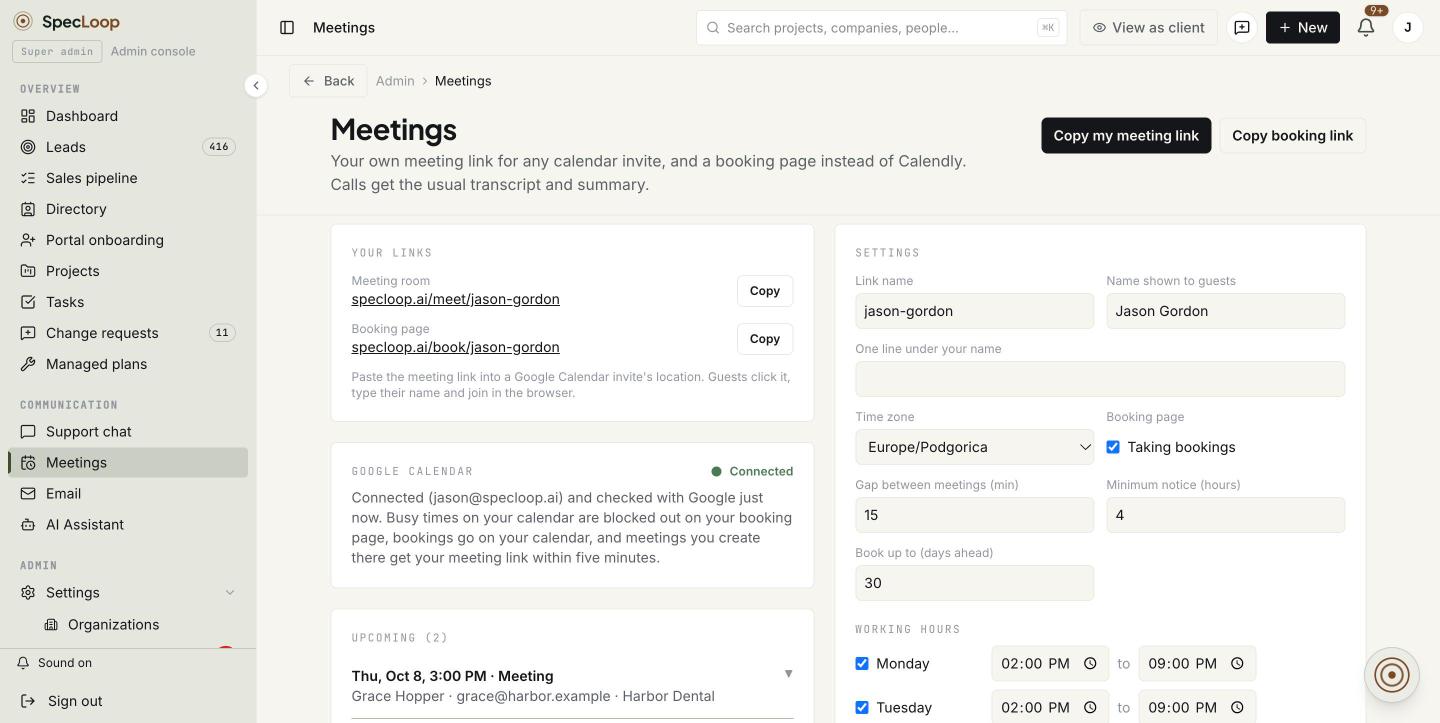
Open Meetings in the sidebar, under Communication. At the top are your two permanent links:
- Meeting room (specloop.ai/meet/your-name). Put it in any calendar invite where you'd normally paste a video link. Guests type their name and join in the browser.
- Booking page (specloop.ai/book/your-name). Send it to anyone who needs a time with you.
What your guests see
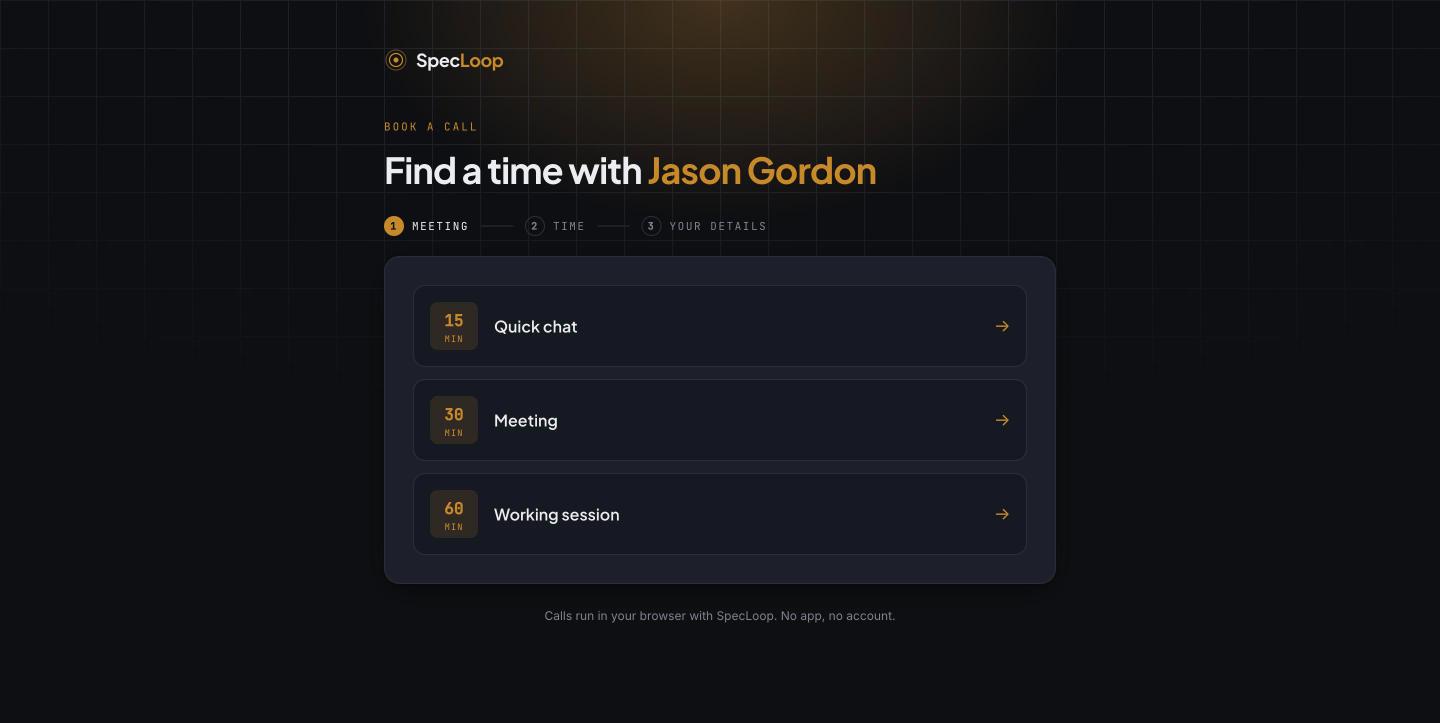
The booking page shows your meeting types first, each with its length.
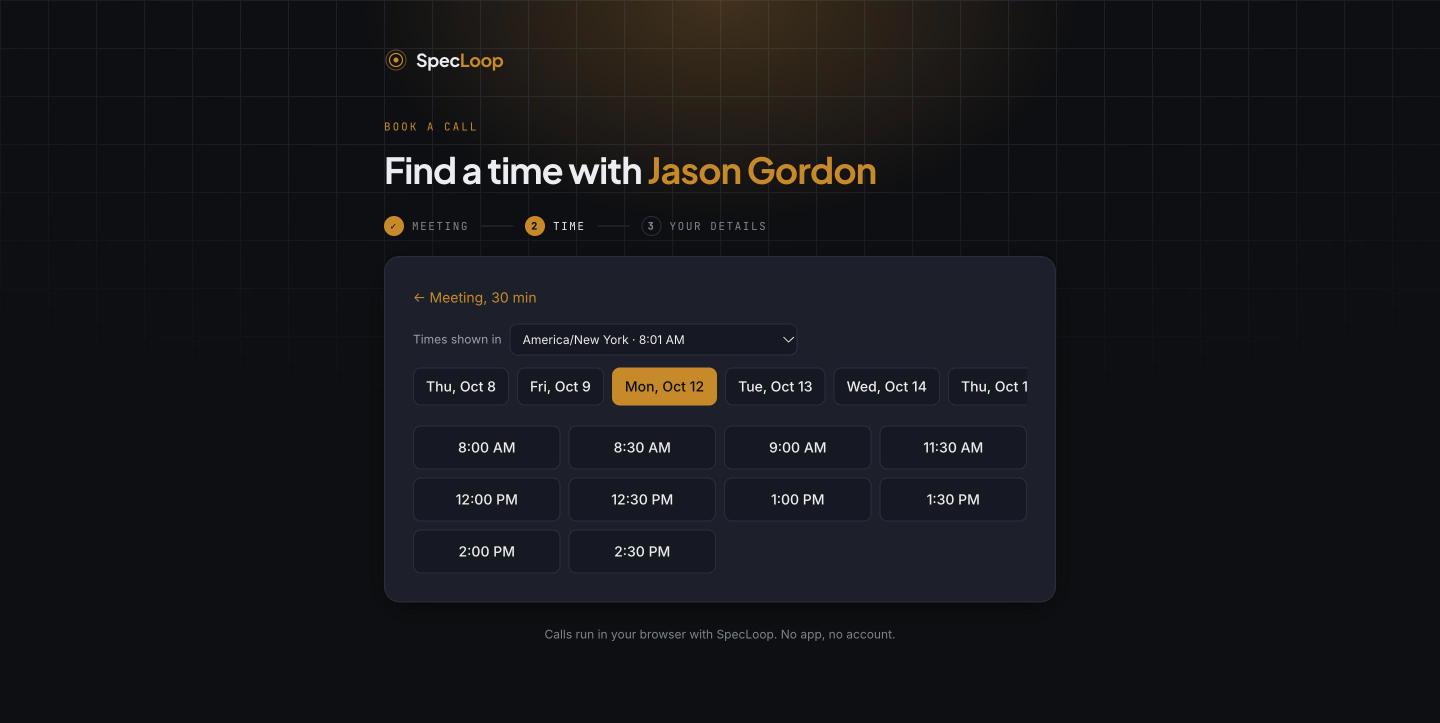
Then the free times, shown in the guest's own time zone. If they're travelling or booking for someone else, they can switch to any other zone, with the current time shown beside each so it's easy to tell which one is right.
Last, their name, email, company and anything you should know before the call.
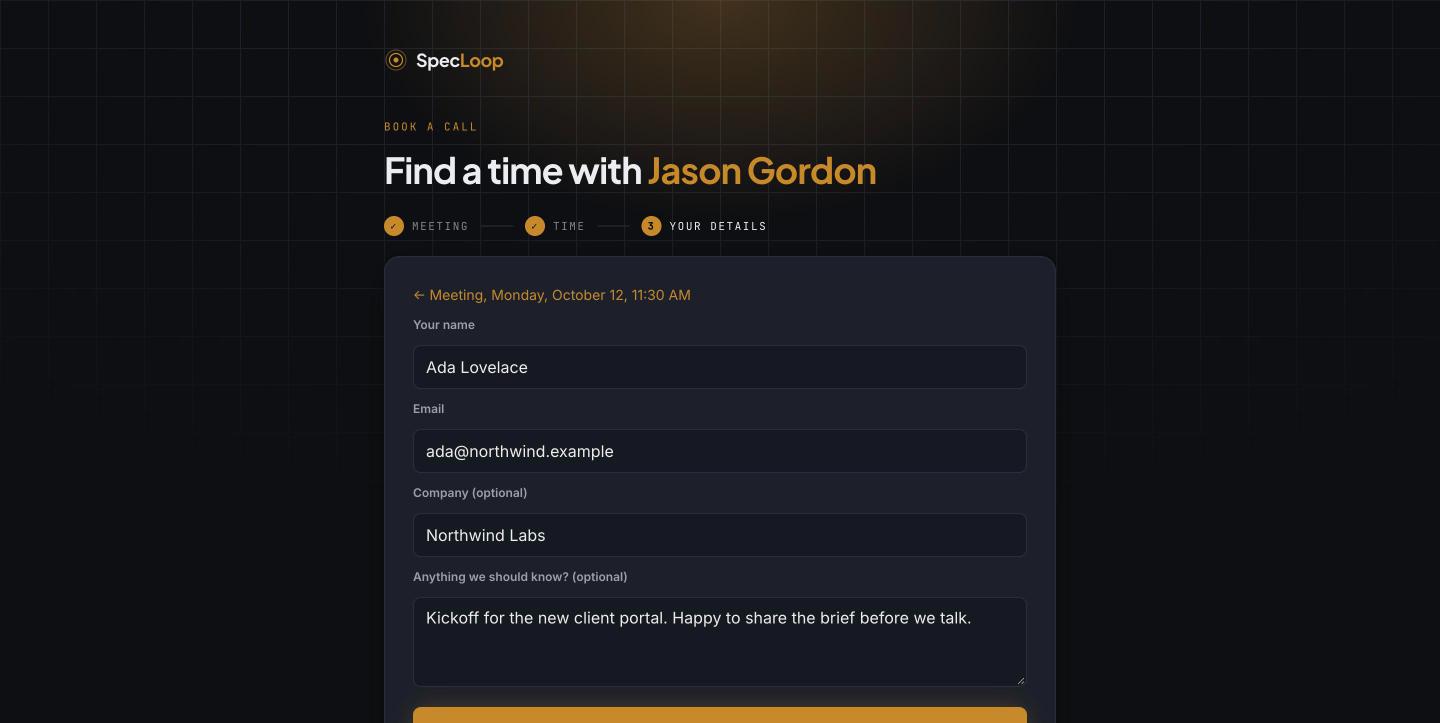
Specloop checks the time is still free before confirming it, so two people can't take the same slot.
Connect Google Calendar
Press Connect Google Calendar on the Meetings page and sign in with your work Google account. The light beside it turns green once Google has actually answered, not just once the account is linked. If something is wrong it turns amber and shows Google's reason, so you're never guessing. Once connected:
- Your busy times are blocked out of your booking page, with the gap you set between meetings.
- Every booking goes on your calendar, with the guest on it and your meeting room as the location.
- Meetings you create in Google Calendar get your meeting link. Within five minutes of creating a meeting with a guest, your Specloop room link is added to it, so every call happens where it gets a transcript.
After someone books
- Both of you get an email with a calendar invite that works with any calendar app, with the meeting link inside.
- The guest can reschedule or cancel from a private link in their email. The updated invite goes to both of you, and your Google Calendar follows.
- A reminder goes out an hour before, to the guest and to you.
- The guest is filed as a lead in Specloop, or matched to the client they already are.
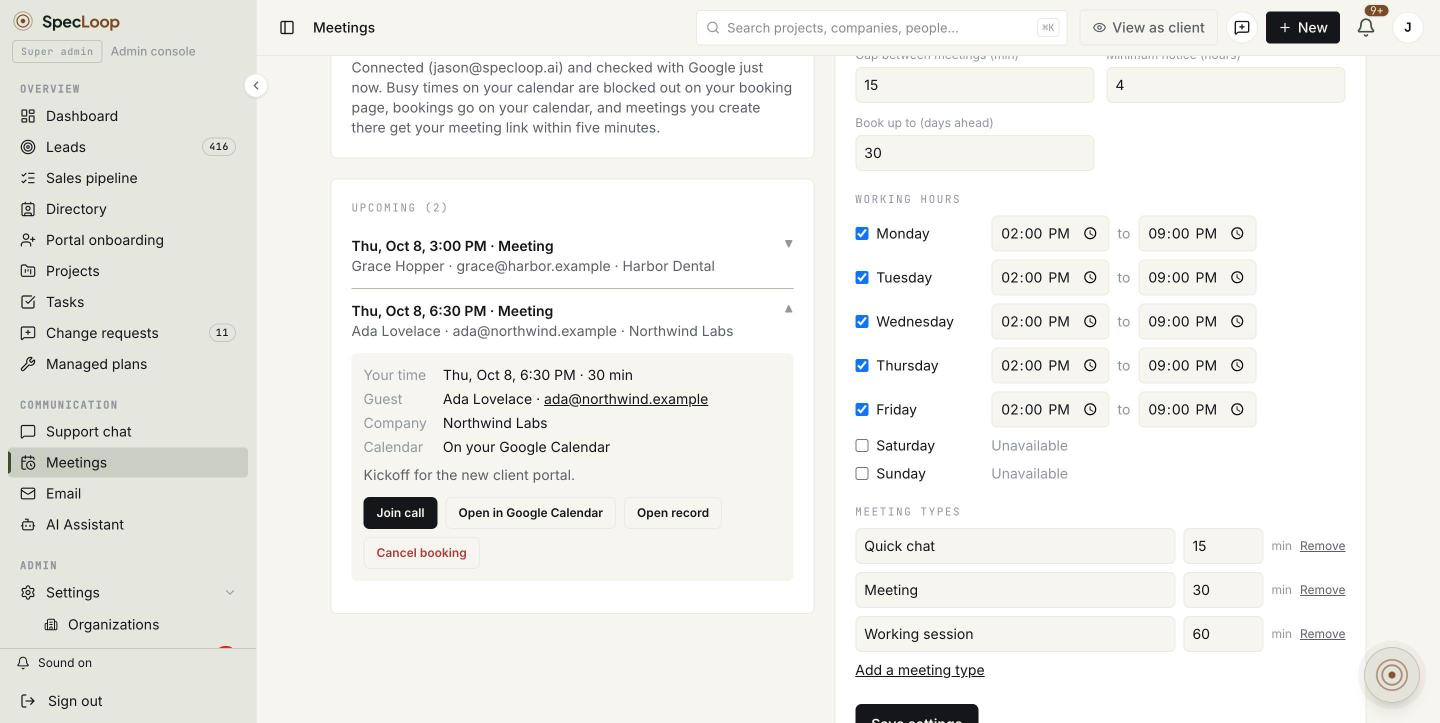
- The booking appears under Upcoming. Click it to open the details: your time and theirs, their email and company, their note, whether it's on your Google Calendar, and buttons to join the call, open it in Google Calendar, open their record or cancel.
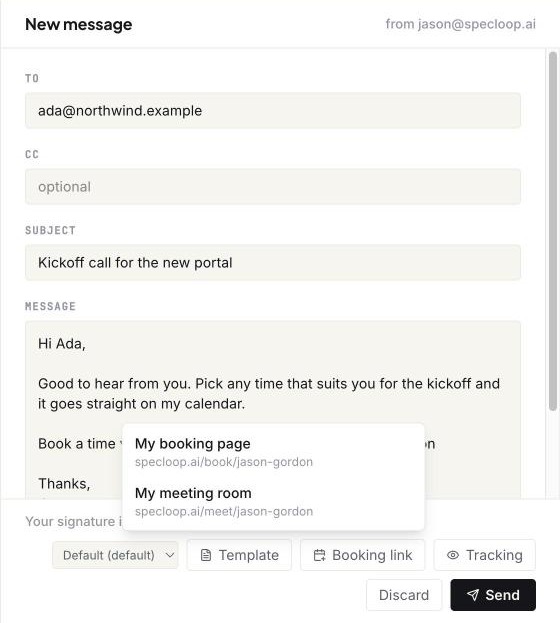
Insert your booking link from email
You don't need to copy your link from anywhere. In Specloop Email, both a new message and a reply have a Booking link button next to Template. Pick My booking page or My meeting room and it's added where your cursor is.
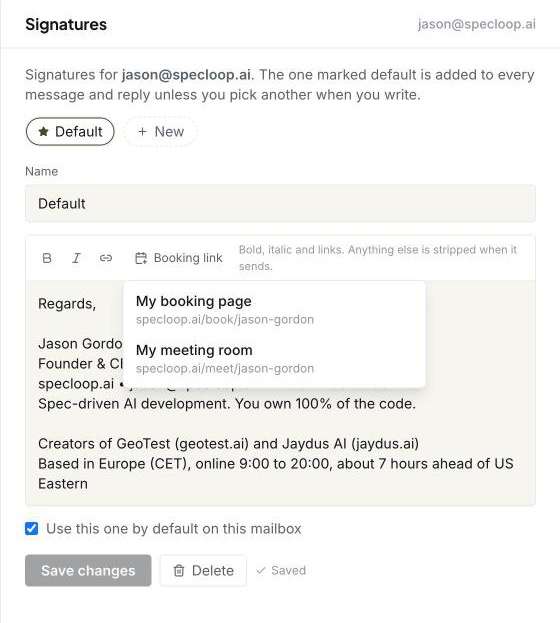
The signature editor has the same button. Add your booking link to your signature once and it goes out with every email.
Where the call goes
When the guest opens your meeting room, they type their name and join. Nothing to install and no account to create.
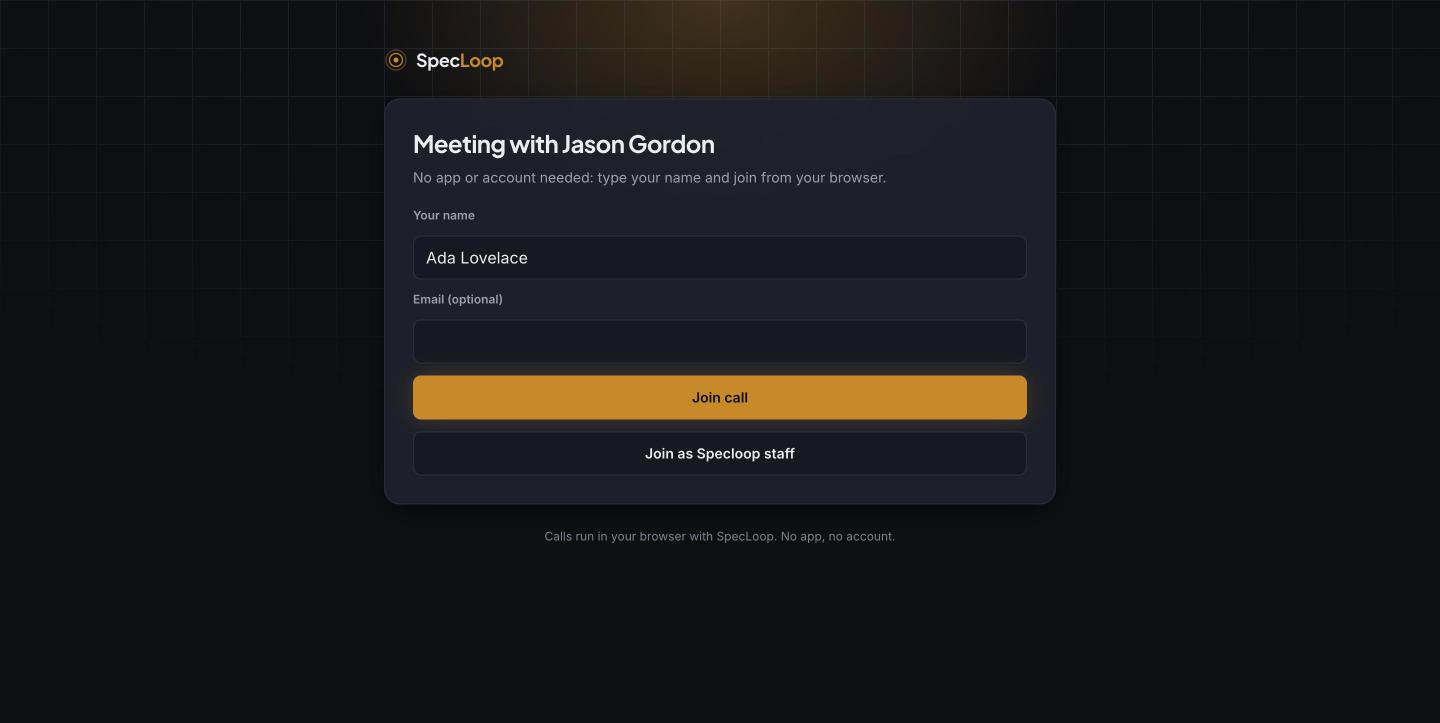
When the call starts, Specloop works out who it's with: the email the guest typed, the booking that's on now, or the guests on the calendar meeting that's on now. If they're a client, the call card, transcript and summary go into your shared chat with them. If not, they go into your own Meetings conversation. Our post on calls covers what happens during and after the call.
Set it up in five minutes
- Open Meetings and check your link name and the name guests see.
- Pick your time zone, tick the days you work and set the hours.
- Set the gap between meetings, the minimum notice and how far ahead people can book.
- Name your meeting types for the guest. "30-minute intro call" says more than "Meeting".
- Connect Google Calendar and wait for the green light.
- Add your booking link to your signature.
Frequently asked
Questions people ask about this
- No. They pick a time on your booking page and join the call in the browser by typing their name.
About the author
Jason Gordon
Founder & CEO, Specloop
Jason Gordon is the founder of Specloop, a spec-driven AI development studio that builds production-grade business applications from a complete specification, in weeks, at flat rate, with 100% code ownership. He also builds GeoTest, a free tool that scores how visible a site is to AI search engines. He writes about AI search, spec-driven development, and why most AI builds never reach production.
Follow Jason on LinkedIn →Keep reading
Related posts

Product Updates
Meet the Board, and a Lighter, Friendlier Specloop
Your portal has a new page, the Board: every update, report and walkthrough video from our team in one place, with comments right under each post. The whole portal is lighter and friendlier, your dashboard shows your project plan and your AI search score, and chat now scrolls back through your full history.

Product Updates
Copy Any Message, and Drop in as Many Files as You Like
Three small changes that save time every day: a copy button on every chat message, dragging several files into chat or Documents at once, and clickable links in call summaries and transcripts. Here is how to use each one.
Product Updates
Client Chat That Lives Inside the Project, Not in Slack
Every Specloop project has its own chat, built into the same portal as the site preview and Change requests. Here is how to use it step by step, what it changes for a client and for the team, and why a shared Slack or Teams channel was never the right place for client work.
Product Updates
Start a Screen Recording in One Click, From Anywhere
Recording a quick video used to start from New, then Record a video. From release 1.350 there is a Record button at the top of the sidebar, an Option+R shortcut on every page, and a link, specloop.ai/record, that opens the recorder straight away from a bookmark, the dock or a launcher like Raycast.
Next step
Want a spec for your build?
We write the full specification before any code is generated, then ship in 30–60 days at one flat rate. You own every line.