Product Updates//4 min read
Leads That Open Beside the List, and Go Straight to Qualified
For teams running their client work on Specloop: a lead now opens in a panel that slides in beside the list, converting a lead puts the deal straight into Qualified on the pipeline, and past clients sit in the Directory instead of crowding the Leads page. Here is how to work a lead from first touch to deal.

By Jason Gordon
Founder & CEO, Specloop

A lead is someone you might sell to but haven't qualified yet. In Specloop you work leads on the Leads page, and once a lead is ready to buy you convert it to a deal on the Sales pipeline. Release 1.304 changes how a lead opens and fixes where a converted lead lands.
This guide is for teams that sell and deliver through Specloop. If you're a client of ours, nothing changes on your side.
Find the lead you want
Open Leads in the sidebar.
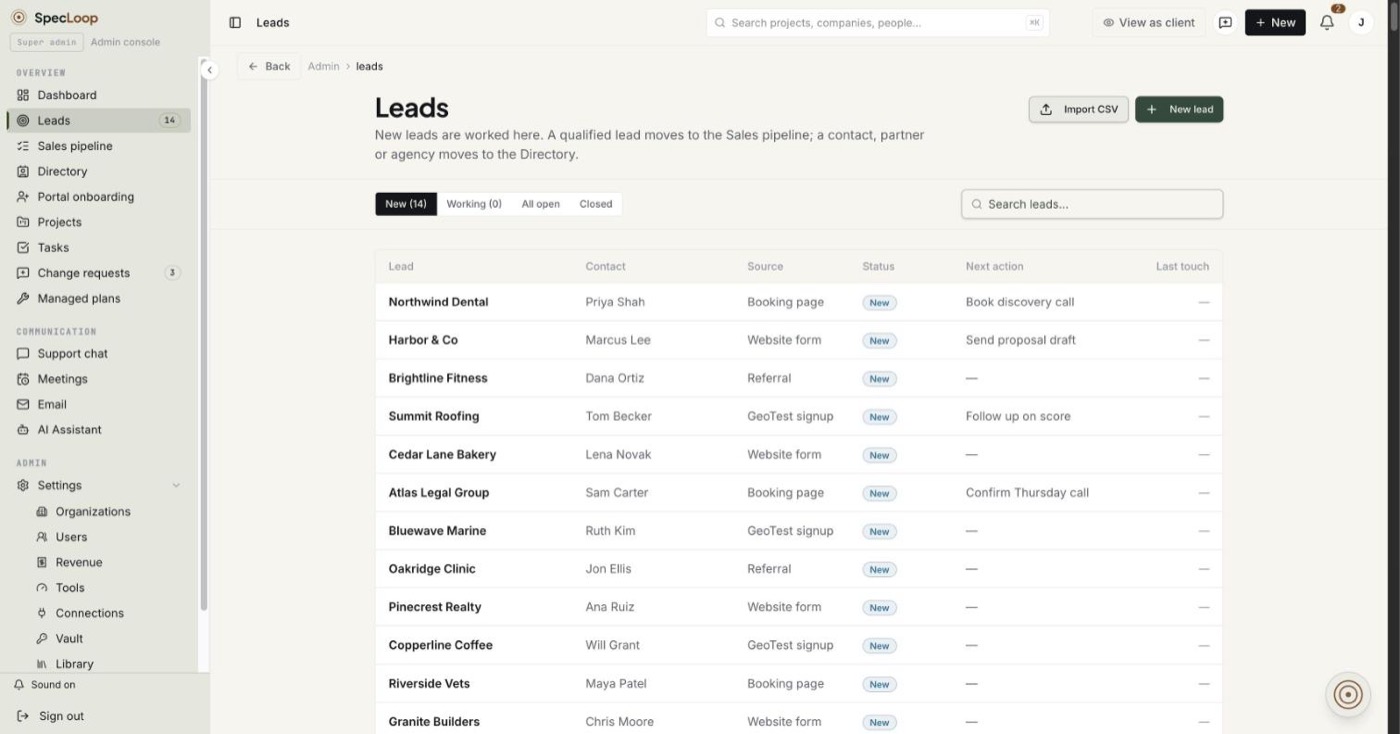
- Pick a tab. New holds leads nobody has worked yet, Working holds leads you're talking to, All open shows both, and Closed shows leads you've finished with.
- Search with the Search leads box on the right.
- Read the row. Each lead shows its contact, its source (booking page, website form, referral, a GeoTest signup and so on), its status, the next action and when someone last touched it.
- Add leads with New lead, or bring a list in with Import CSV.
Open a lead beside the list
Click a lead. It slides in as a panel from the right, and the list stays visible behind it, so you can work down your leads one after another without losing your place.
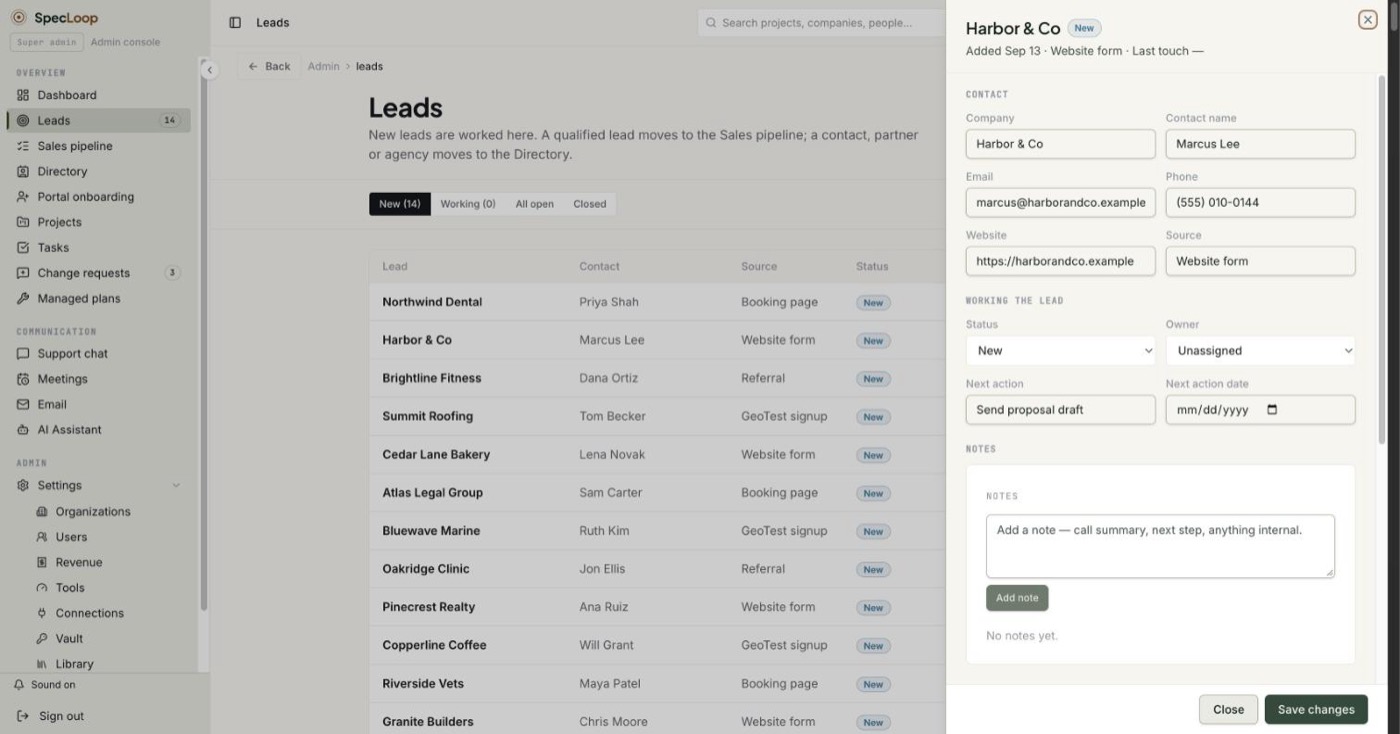
The panel has the same sections for every lead:
- Contact: company, contact name, email, phone, website and source.
- Working the lead: status (New or Working), the owner on your team, the next action and the date it's due.
- Notes: anything internal, like a call summary or what to raise next time.
- Activity: a log of what happened. Choose a type, write a line in Log what happened and press Log. Email sent from your mailbox to this address is logged here too.
- Move it on: convert the lead, or move it somewhere else.
Press Save changes when you've edited fields. Close, Esc, a click outside the panel or the browser's back button closes it. Each open lead has its own link in the address bar, so you can send a colleague straight to it. On a phone the panel fills the screen.
Convert a lead to a deal
When a lead is ready to buy, scroll to Move it on.
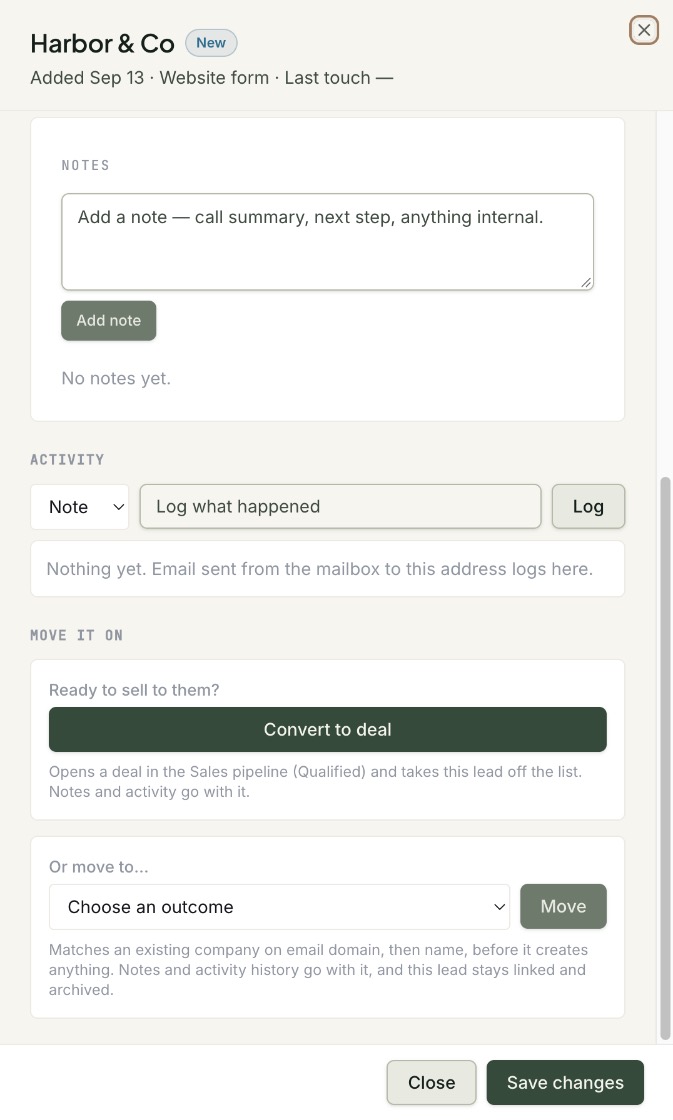
- Press Convert to deal. It opens a deal in the Sales pipeline at Qualified and takes the lead off the list. Notes and activity go with it.
- If the lead isn't a sale, use Or move to... instead. Choose an outcome and press Move. Specloop matches an existing company by email domain, then by name, before it creates anything, and the lead stays linked and archived.
Before this release, some converted leads never showed up on the pipeline. Leads brought in by an import came with an empty placeholder deal in a hidden starting stage, and converting reused that placeholder without moving it. Now:
- A placeholder is moved to Qualified and filled in with the lead's details, so no second deal is created.
- A deal that's already further along is left exactly where it is.
- No deal at all means a new one is opened in Qualified.
Leads converted before the fix were moved into Qualified too.
Carry on in the Sales pipeline
Open Sales pipeline to see the deal.
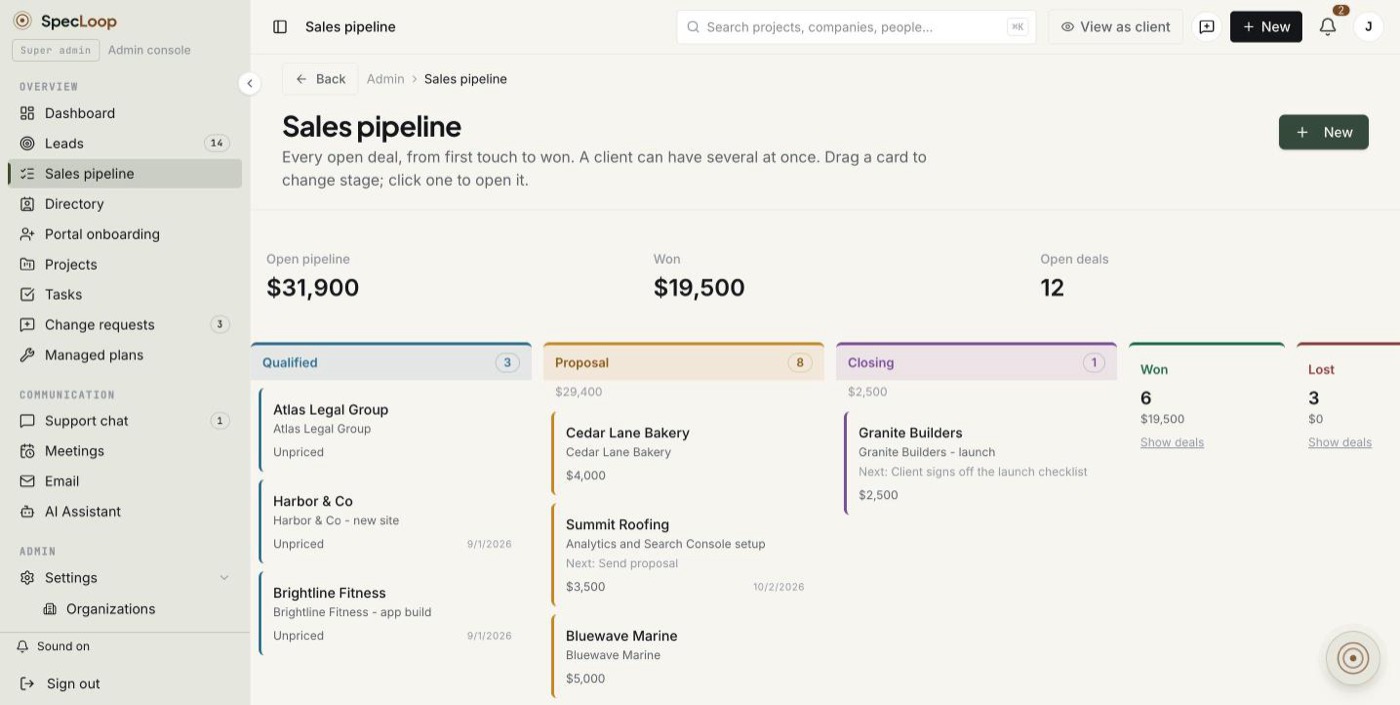
Drag a card to change its stage, or click it to open the deal. Deals open on their own full page, with room for notes, a proposal, the conversation and next steps, because a deal needs far more space than a lead.
Leads holds leads
A lead list is only useful if it's a list of people you might sell to. Past clients now have their own status in the Directory, which makes them a list you can come back to without counting them as new leads. If the Leads list ever fails to load, the page now says so and offers to try again, instead of showing an empty list. See how leads, deals and delivery fit together on the platform page.
Tips
- Give every lead a next action and a date. The Next action column then tells anyone on the team what happens next without opening the lead.
- Log calls as you go. A one-line activity entry is enough, and it travels with the lead when you convert it.
- Use Or move to for partners and suppliers. They belong in the Directory, not in your sales numbers.
Frequently asked
Questions people ask about this
- No. Convert to deal reuses an existing placeholder or a deal that's already further along, and only opens a new deal when the lead has none.
About the author
Jason Gordon
Founder & CEO, Specloop
Jason Gordon is the founder of Specloop, a spec-driven AI development studio that builds production-grade business applications from a complete specification, in weeks, at flat rate, with 100% code ownership. He also builds GeoTest, a free tool that scores how visible a site is to AI search engines. He writes about AI search, spec-driven development, and why most AI builds never reach production.
Follow Jason on LinkedIn →Keep reading
Related posts
Product Updates
Scheduling, Booking Links and Meeting Rooms, All in the Dashboard
Every member of a Specloop team now has a booking page and a permanent meeting room. Guests pick a time in their own time zone, bookings go on your Google Calendar, your busy times are blocked out, and you can drop your booking link into any email or your signature in one click. Here is how to set it up and what happens after someone books.

Product Updates
Client Chat That Lives Inside the Project, Not in Slack
Every Specloop project has its own chat, built into the same portal as the site preview and Change requests. Here is how to use it step by step, what it changes for a client and for the team, and why a shared Slack or Teams channel was never the right place for client work.
Product Updates
Start a Screen Recording in One Click, From Anywhere
Recording a quick video used to start from New, then Record a video. From release 1.350 there is a Record button at the top of the sidebar, an Option+R shortcut on every page, and a link, specloop.ai/record, that opens the recorder straight away from a bookmark, the dock or a launcher like Raycast.

Product Updates
Calls and Conference Calls in Specloop, From Ring to Summary
Every conversation in Specloop has a Call button. It rings everyone in the thread on every device they have open, opens video and screen share in its own tab, translates as people talk, and lets you bring in anyone with a link. When the call ends, the transcript and summary land in the chat. Here is how each part works.
Next step
Want a spec for your build?
We write the full specification before any code is generated, then ship in 30–60 days at one flat rate. You own every line.