Product Updates//Updated /3 min read
Calls That File Themselves at the Bottom of Your Chat
Calls in your project chat used to leave their card where the call began, so the summary ended up buried above everything said since. Now the card moves to the bottom when the call ends, and again when the transcript and summary are ready. Here is how to start a call and use what it leaves behind.

By Jason Gordon
Founder & CEO, Specloop

You can call our team straight from your project chat. After the call you get a transcript and a short summary: what was discussed, what was decided and who's doing what next. From release 1.301, that summary lands at the bottom of the conversation, where you look first.
Start a call from the chat
- Open Support chat in the sidebar and choose the conversation for your project.
- Check the language picker next to the Call button. Pick the language you'll be speaking so the transcript comes out right.
- Press Call. The call opens with video and screen share, and the chat stays open beside it.
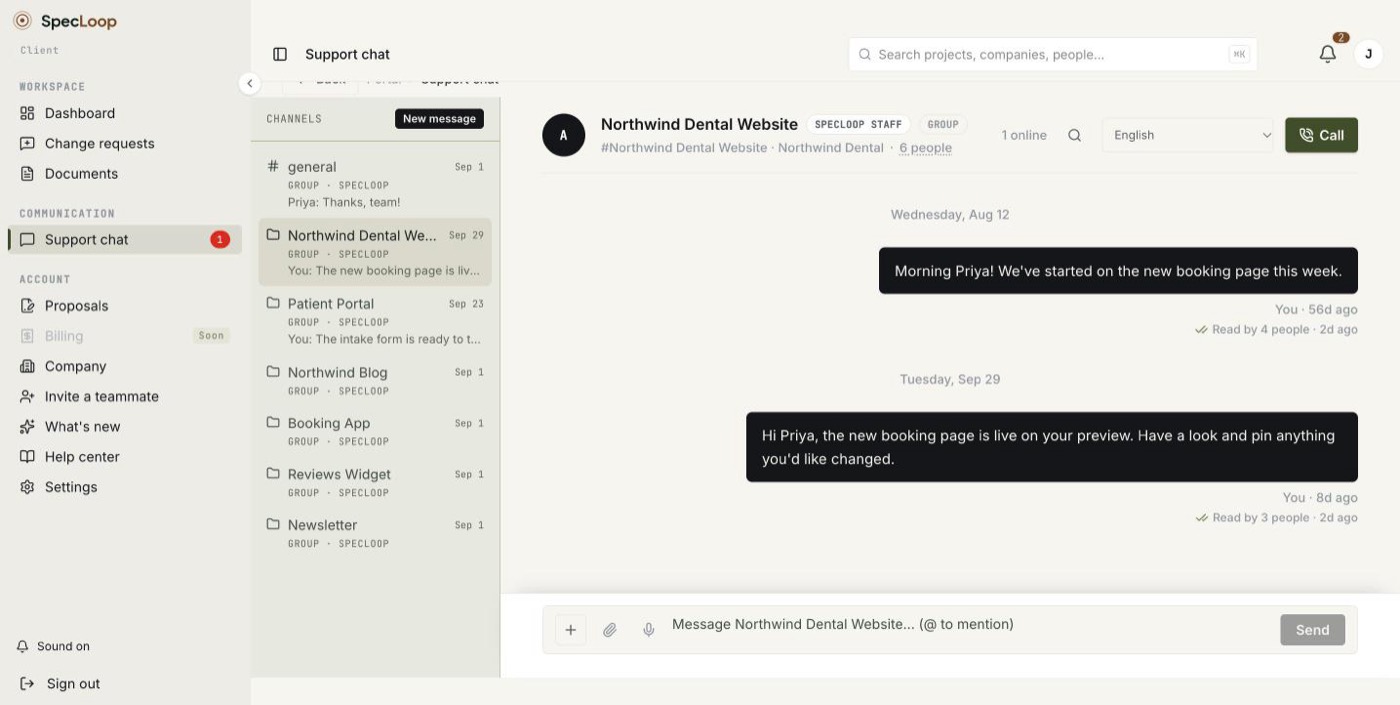
While the call is live, its card in the chat shows the call in progress, and anyone on the project can join it from there.
Where the card goes when the call ends
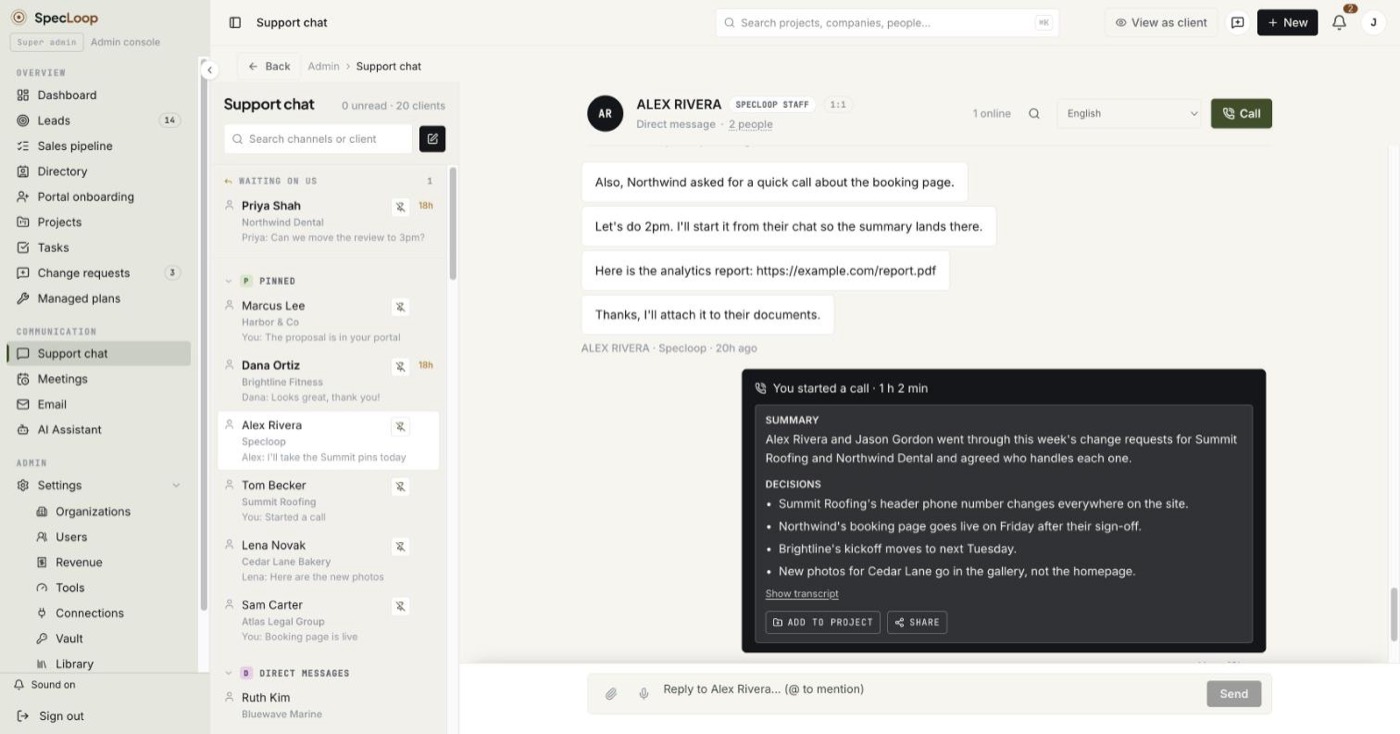
The call's card is posted when the call starts. Before this release it stayed there. By the time the summary arrived, the conversation had often moved on, so the summary sat several messages up where nobody looked. Now the card moves itself:
- When the call ends, the card moves to the bottom of the chat.
- When the transcript and summary are ready, usually a few minutes later, it moves to the bottom again, in case people kept chatting in the meantime.
It's the same message moving, not a copy. Read receipts and reactions stay with it, and anyone who already has the chat open sees it slide into place without refreshing.
Use what's on the card
The card shows how long the call lasted, then three parts:
- Summary: a few sentences on what the call was about and where it landed.
- Decisions: one line for each decision actually made.
- Action items: one line for each follow-up, starting with who owns it.
Underneath:
- Show transcript opens the full transcript, labelled by speaker.
- Add to project files the summary in the project's notes.
- Share passes it on.
- The copy button on the card copies the summary, ready to paste into an email or a document.
Links mentioned on the call are clickable in both the summary and the transcript, and open in a new tab.
Why it matters
A call is often where the real decisions get made. If the record of it is hard to find, decisions get forgotten or argued over later. With the summary at the bottom of the conversation, the whole team can see what was agreed without hunting for it. There's more on how chat works inside each project in our post on project chat.
Tips
- Start the call from the right conversation. The summary lands in the thread the call started in, so start it in the project it's about.
- Say decisions out loud. "So we're agreed, the booking page goes live Friday" turns into a clean line under Decisions.
- Name who's doing what. Action items are written with an owner when the call makes it clear.
Frequently asked
Questions people ask about this
- No. Transcripts and summaries are made automatically after a call with our team, and the card moves into place on its own.
About the author
Jason Gordon
Founder & CEO, Specloop
Jason Gordon is the founder of Specloop, a spec-driven AI development studio that builds production-grade business applications from a complete specification, in weeks, at flat rate, with 100% code ownership. He also builds GeoTest, a free tool that scores how visible a site is to AI search engines. He writes about AI search, spec-driven development, and why most AI builds never reach production.
Follow Jason on LinkedIn →Keep reading
Related posts

Product Updates
Calls and Conference Calls in Specloop, From Ring to Summary
Every conversation in Specloop has a Call button. It rings everyone in the thread on every device they have open, opens video and screen share in its own tab, translates as people talk, and lets you bring in anyone with a link. When the call ends, the transcript and summary land in the chat. Here is how each part works.

Product Updates
Activity That Keeps You Posted, Automatically
Your project's Activity feed now fills itself. Every update to your site or app shows up as one plain-English line, every launch comes with a link, and finished change requests, calls and documents appear as they happen. Each Monday you get a one-line summary of the week. Here is where to find it and how to read it.

Product Updates
One Dashboard That Tells You What Needs You
The dashboard and the Overview page used to say almost the same thing in two places. They are now one full-width page: five headline numbers across the top, one queue of everything waiting on you, your to-dos and notes beside it, and the business numbers underneath. Here is how to use it.

Product Updates
Record Your Screen in Specloop and Show Us What You Mean
Some things are quicker to show than to type. Specloop now records your screen and your voice, for up to ten minutes, from Support chat, any change request or the new Videos page. Nothing to install. The recording lands where you started it and in your project's Videos library.
Next step
Want a spec for your build?
We write the full specification before any code is generated, then ship in 30–60 days at one flat rate. You own every line.