Product Updates//3 min read
Copy Any Message, and Drop in as Many Files as You Like
Three small changes that save time every day: a copy button on every chat message, dragging several files into chat or Documents at once, and clickable links in call summaries and transcripts. Here is how to use each one.

By Jason Gordon
Founder & CEO, Specloop

Release 1.302 adds three small things that save time every day: a copy button on every chat message, dropping several files at once into chat or Documents, and clickable links in call summaries. This guide shows how to use each one.
Copy any message
- Open Support chat and the conversation you want.
- On a computer, hover over the message. A small bar of actions appears beside it.
- On a phone, tap the message to open its options.
- Choose Copy. The message text is on your clipboard, ready to paste into an email or a document.
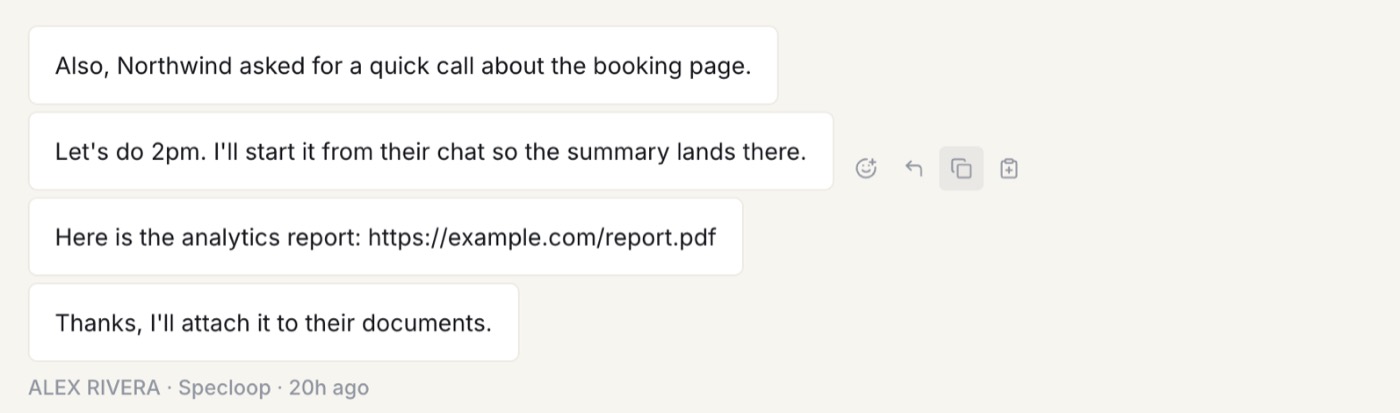
On a call card, Copy copies the call's summary, so you can send the decisions on without retyping them.
Send several files at once in chat
You could already drag a file into the chat window. If you dropped three, though, only the first one went through. Now:
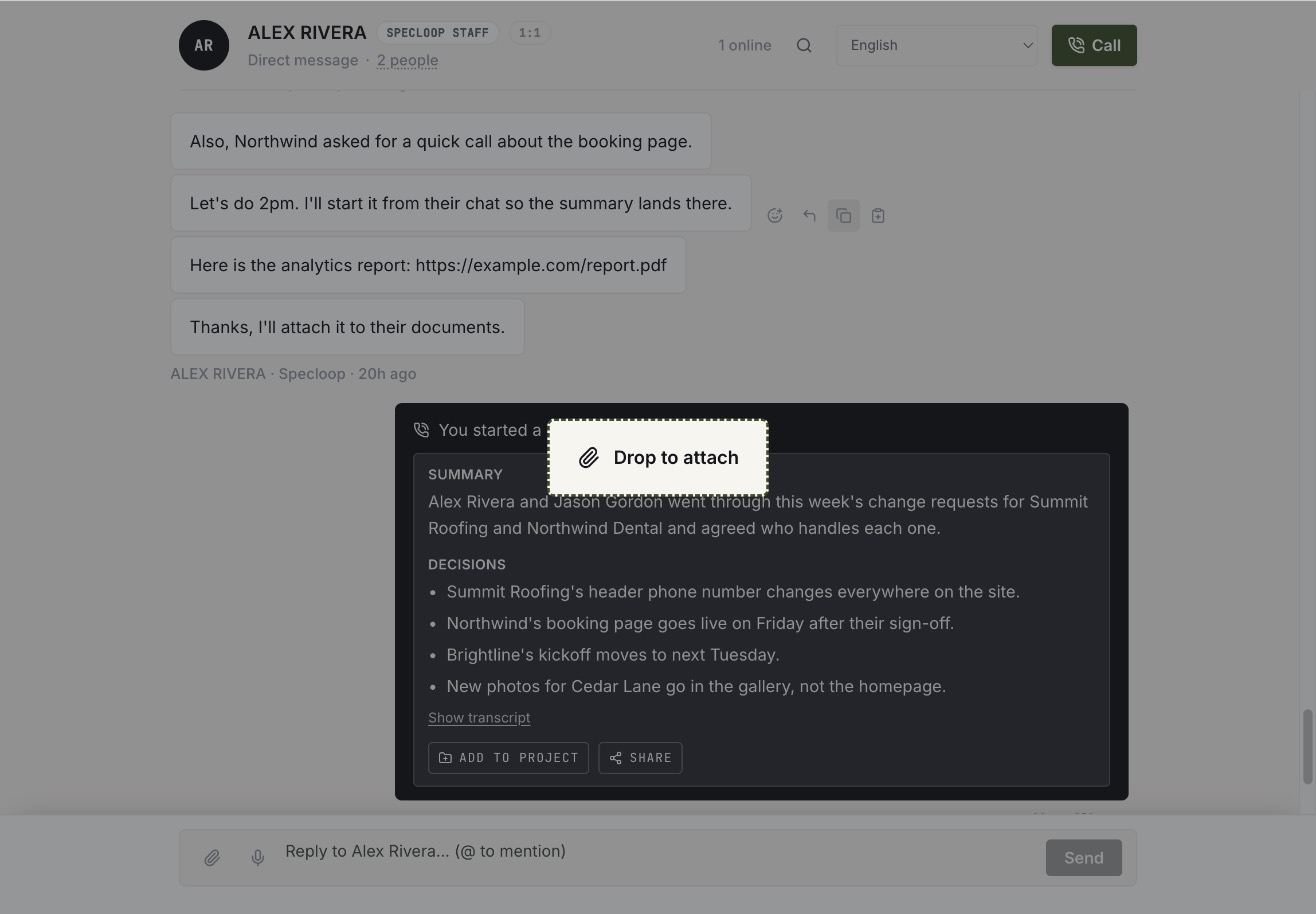
- Drag the files from your desktop onto the chat. The chat shows a drop area while you hold them over it. You can also paste them, or choose them with the paperclip.
- The first file attaches to the message you're writing.
- The rest wait in line, with a note saying how many are queued and a Clear button if you change your mind.
- Press send. Each time you send, the next file attaches automatically, so every file goes out as its own message.
The same checks as before still apply: images, videos, audio, PDFs, Office documents, and text, CSV or ZIP files, each under the size limit. A file that can't be sent is named and skipped, so you know exactly which one didn't go.
Drag files into Documents
Documents has a drop area too.
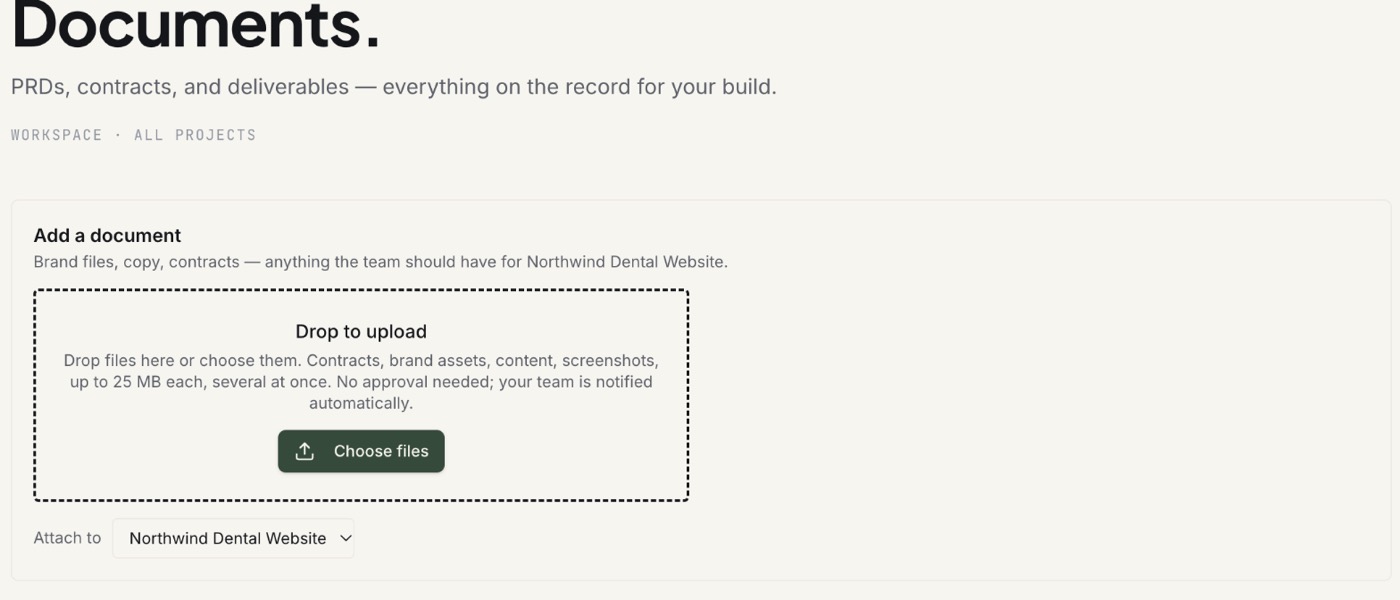
- Open Documents in the sidebar.
- Under Add a document, pick the project in Attach to if you have more than one.
- Drag files onto Drop to upload, or press Choose files. Contracts, brand assets, content and screenshots all work, up to 25 MB each.
- Watch the progress. You'll see "Uploading 2 of 3" while they go, then one message when they're done. No approval is needed, and our team is told automatically.
On our team's side the same drop area works too, and the category and visibility picked apply to every file in the batch.
Clickable links in call summaries
Links were already clickable in normal messages. Now they're clickable in call summaries and call transcripts as well, so an address mentioned on a call opens in a new tab with one click. More on calls in chat is in our post on calls that file themselves, and the whole chat is covered in our guide to project chat.
Tips
- Name files before you send them. "Logo-final.png" tells everyone what it is. "IMG_4471.png" doesn't.
- Big batches go in Documents. Chat sends each file as its own message, so ten photos are easier to find later in Documents.
- Copy, don't screenshot. Copied text can be searched and pasted. A screenshot of a message can't.
Frequently asked
Questions people ask about this
- There's no limit on how many you drop. Each file still has to be an accepted type and under the size limit, and in chat each one is sent as its own message.
About the author
Jason Gordon
Founder & CEO, Specloop
Jason Gordon is the founder of Specloop, a spec-driven AI development studio that builds production-grade business applications from a complete specification, in weeks, at flat rate, with 100% code ownership. He also builds GeoTest, a free tool that scores how visible a site is to AI search engines. He writes about AI search, spec-driven development, and why most AI builds never reach production.
Follow Jason on LinkedIn →Keep reading
Related posts

Product Updates
Scheduling, Booking Links and Meeting Rooms, All in the Dashboard
Every member of a Specloop team now has a booking page and a permanent meeting room. Guests pick a time in their own time zone, bookings go on your Google Calendar, your busy times are blocked out, and you can drop your booking link into any email or your signature in one click. Here is how to set it up and what happens after someone books.

Product Updates
Calls and Conference Calls in Specloop, From Ring to Summary
Every conversation in Specloop has a Call button. It rings everyone in the thread on every device they have open, opens video and screen share in its own tab, translates as people talk, and lets you bring in anyone with a link. When the call ends, the transcript and summary land in the chat. Here is how each part works.

Product Updates
Team To-Dos and Notes on Your Dashboard
Your dashboard now has a to-do list and notes your whole team shares. Search finds pages, tasks and documents, on your phone too. Support chat fits a phone screen, and dictation keeps going for as long as you talk. Here is how to use each one.
Product Updates
Client Chat That Lives Inside the Project, Not in Slack
Every Specloop project has its own chat, built into the same portal as the site preview and Change requests. Here is how to use it step by step, what it changes for a client and for the team, and why a shared Slack or Teams channel was never the right place for client work.
Next step
Want a spec for your build?
We write the full specification before any code is generated, then ship in 30–60 days at one flat rate. You own every line.