Product Updates//4 min read
One Dashboard That Tells You What Needs You
The dashboard and the Overview page used to say almost the same thing in two places. They are now one full-width page: five headline numbers across the top, one queue of everything waiting on you, your to-dos and notes beside it, and the business numbers underneath. Here is how to use it.

By Jason Gordon
Founder & CEO, Specloop

The Specloop dashboard is the first page you see when you sign in to run your client work. It answers two questions: what is waiting on me right now, and how is the business doing. Until release 1.303 those answers lived on two pages, the dashboard and Overview, and they repeated each other. They are now one page that uses the whole width of the screen.
This guide is for the people on a team who sell and deliver through Specloop. If you're a client of ours, your portal home is different and nothing changes for you.
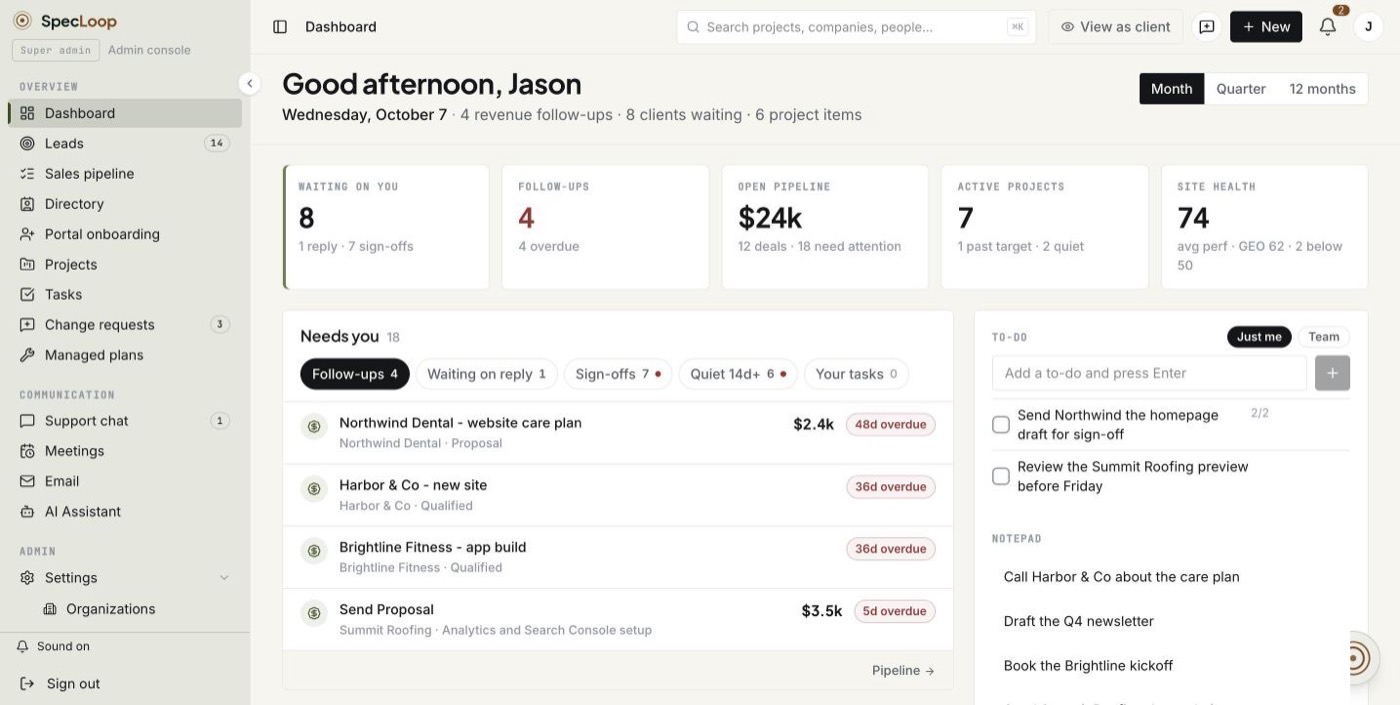
Read the five tiles first
The strip across the top holds five tiles. Each one is a number, a line of context and a link to the page behind it:
- Waiting on you: clients waiting for a reply in chat or for a sign-off. The line underneath splits it, for example "1 reply · 7 sign-offs".
- Follow-ups: deals whose next step is due. The number turns red when any of them is overdue.
- Open pipeline: the value of the real deals in play and how many there are, plus how many need attention.
- Active projects: builds that are moving, with how many are past their target date and how many have gone quiet.
- Site health: the average performance score across the client sites you look after, with the average GEO score and how many sites sit below 50.
Click any tile to open the page behind it. The Month, Quarter and 12 months switch at the top right changes every period number on the page at once.
Work through the Needs you queue
Under the tiles sits one card called Needs you. It replaces the five long lists the old dashboard stacked on top of each other.
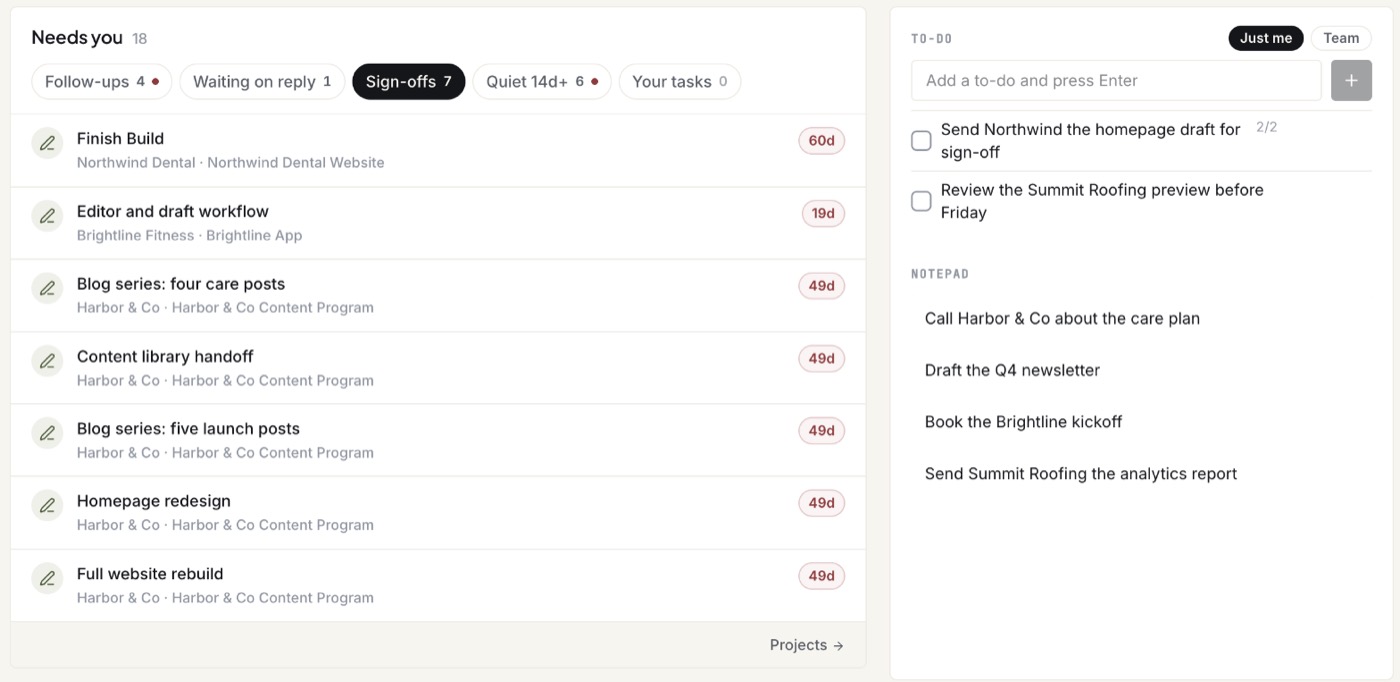
To use it:
- Pick a tab. Follow-ups, Waiting on reply, Sign-offs, Quiet 14d+ and Your tasks each show a count. The card opens on the first tab that has work in it.
- Look for red. A red dot on a tab, and a red badge on a row, means it's overdue.
- Open a row. Each row links to the deal, chat, deliverable, project or task it's about.
- See the rest. The card shows the top seven items. The link at the bottom of the card opens the full list on its own page.
The rows come from the same places the old lists did. You work through them tab by tab instead of scrolling a long page to find the end.
Keep your desk beside it
To the right of the queue are your To-do list and Notepad:
- To-do: type in the box and press Enter. Just me shows your own list, Team shows the list your whole team shares.
- Notepad: "Only you see this." It saves as you type. It now stops at a sensible height and scrolls inside itself, so a long page of notes no longer pushes everything else down the screen.
Check the numbers at the bottom
Scroll down to How it's going. Four compact cards show the business against the period before.
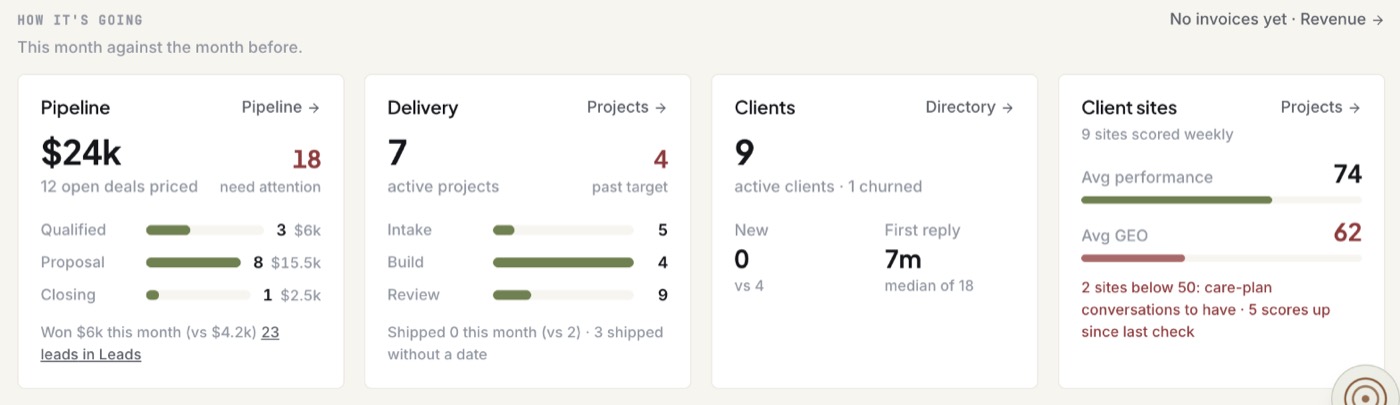
- Pipeline: open deals by stage (Qualified, Proposal, Closing), what was won this period, and a link to the leads waiting on the Leads page.
- Delivery: active projects by stage (Intake, Build, Review), how many are past target and what shipped.
- Clients: active clients, new clients against the period before, and the median time to a first reply.
- Client sites: average performance and GEO scores, how many sites are below 50 and how many improved since the last weekly check.
Why leads aren't in the pipeline
Leads are people you haven't qualified yet, so they're worked on the Leads page. Before this release, a few hundred imported contacts could make the pipeline look far bigger than it was. The pipeline now counts real deals only and links to your leads as a separate count.
Why there's no revenue card
If you don't invoice through Specloop yet, a card full of zeros tells you nothing. Revenue shows as one quiet line, "No invoices yet · Revenue", until there are invoices. Then the full card appears.
On a phone
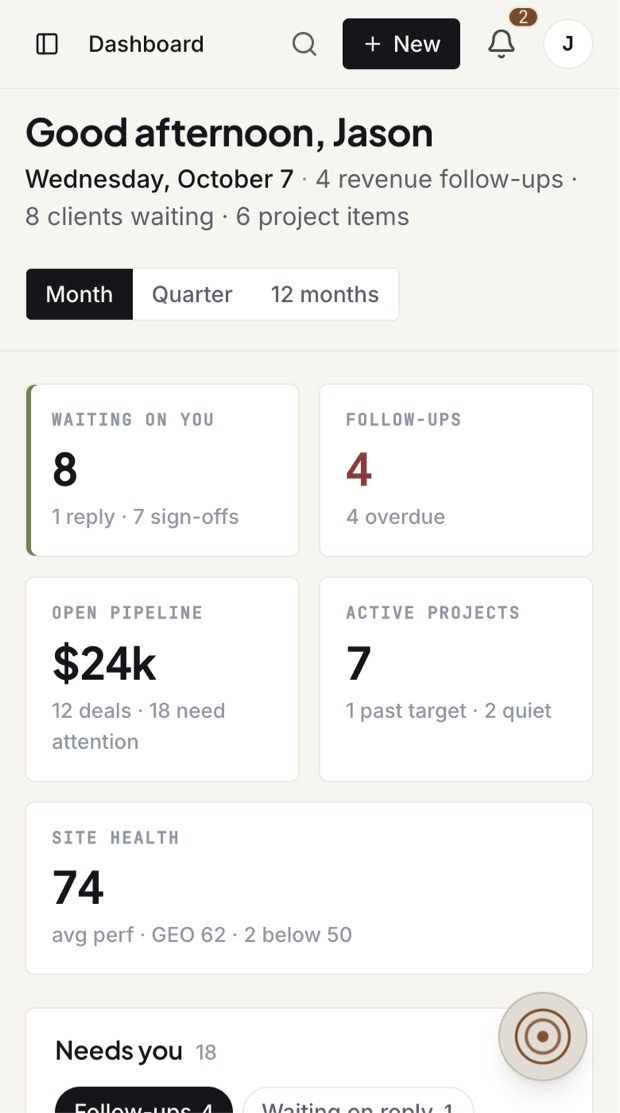
The tiles sit two to a row and everything else stacks into one column, with no sideways scrolling.
Tips
- Start with the red. Overdue follow-ups and old sign-offs are usually the quickest wins of the day.
- Use Quiet 14d+ weekly. A project nobody has touched for two weeks is often waiting on a decision nobody asked for.
- Counts stay right as you grow. The numbers read every row, up to 100,000, rather than stopping at the database's usual 1,000. More on how the platform fits together is on the platform page.
Frequently asked
Questions people ask about this
- It's part of the dashboard now. The business numbers sit in the How it's going section at the bottom of the same page, and an old Overview link opens the dashboard.
About the author
Jason Gordon
Founder & CEO, Specloop
Jason Gordon is the founder of Specloop, a spec-driven AI development studio that builds production-grade business applications from a complete specification, in weeks, at flat rate, with 100% code ownership. He also builds GeoTest, a free tool that scores how visible a site is to AI search engines. He writes about AI search, spec-driven development, and why most AI builds never reach production.
Follow Jason on LinkedIn →Keep reading
Related posts
Product Updates
Team To-Dos and Notes on Your Dashboard
Your dashboard now has a to-do list and notes your whole team shares. Search finds pages, tasks and documents, on your phone too. Support chat fits a phone screen, and dictation keeps going for as long as you talk. Here is how to use each one.
Product Updates
Scheduling, Booking Links and Meeting Rooms, All in the Dashboard
Every member of a Specloop team now has a booking page and a permanent meeting room. Guests pick a time in their own time zone, bookings go on your Google Calendar, your busy times are blocked out, and you can drop your booking link into any email or your signature in one click. Here is how to set it up and what happens after someone books.

Product Updates
Calls That File Themselves at the Bottom of Your Chat
Calls in your project chat used to leave their card where the call began, so the summary ended up buried above everything said since. Now the card moves to the bottom when the call ends, and again when the transcript and summary are ready. Here is how to start a call and use what it leaves behind.

Product Updates
Meet the Board, and a Lighter, Friendlier Specloop
Your portal has a new page, the Board: every update, report and walkthrough video from our team in one place, with comments right under each post. The whole portal is lighter and friendlier, your dashboard shows your project plan and your AI search score, and chat now scrolls back through your full history.
Next step
Want a spec for your build?
We write the full specification before any code is generated, then ship in 30–60 days at one flat rate. You own every line.