Product Updates//Updated /5 min read
Change Requests: Point at What You Want Changed
The slowest part of any website project is feedback: screenshots with arrows, emails that say 'the button near the top', and changes that land in the wrong place. Change requests replace all of it with a pin on the live site. Here is how to use them, step by step.

By Jason Gordon
Founder & CEO, Specloop
Ask anyone who has built a website for a client where the time goes, and feedback will be near the top of the list. A screenshot with a red arrow. An email that says "the button near the top of the services page, the second one". A spreadsheet of forty changes where half the rows don't say which page. Then a week later: "that's not the one I meant."
Change requests end that. Instead of describing where a change goes, you point at it. Each change you point at is called a pin. (The tool was called Markup until 28 September 2026 and Loops until 6 October 2026. Same feature, clearer name.)
Open your site in Specloop
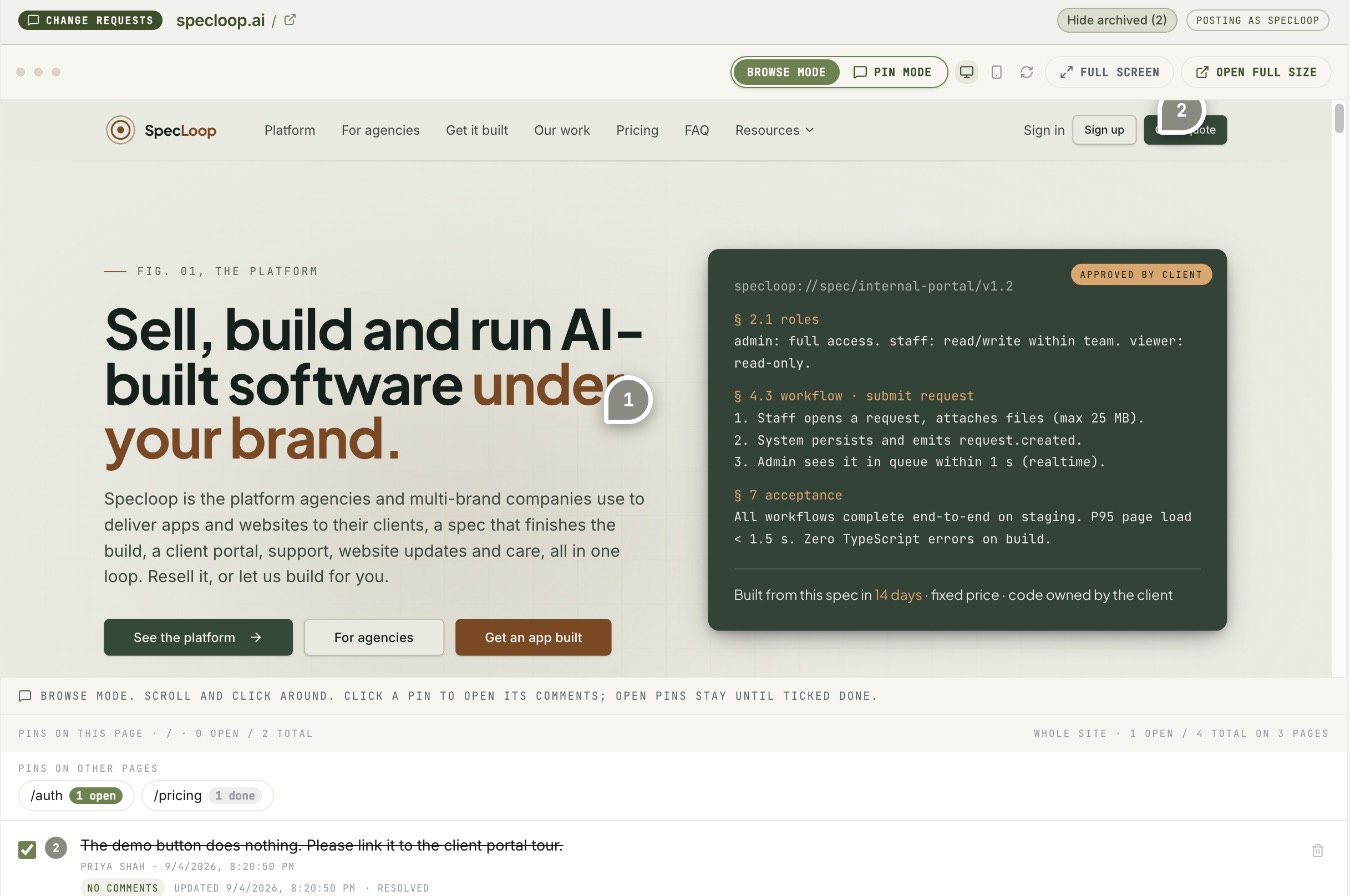
Sign in to your portal and choose Change requests in the sidebar, or press Request a change on your dashboard. Your site loads, live, right there in the page.
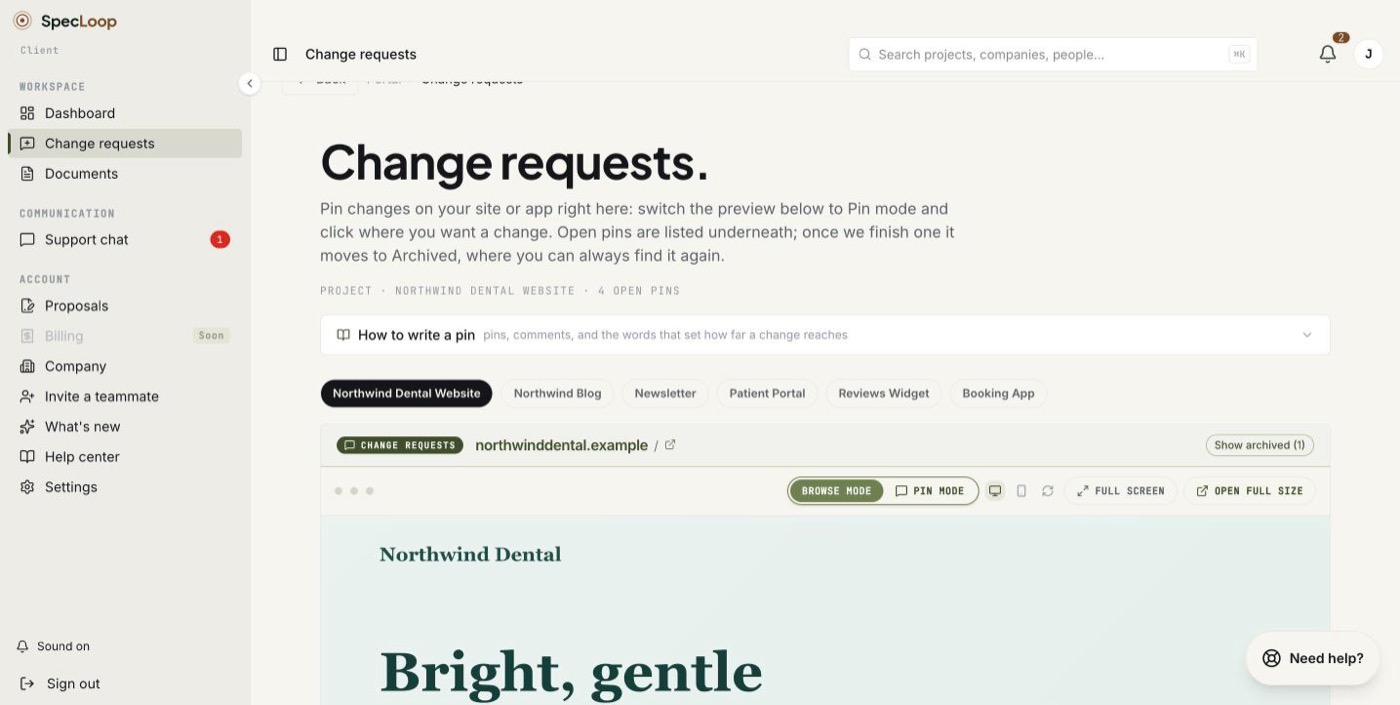
If you have more than one site or app with us, choose it from the tabs above the preview.
Place a pin, step by step
- Browse to the page you want to change. The preview opens in Browse mode, so links and menus work the way they do on your live site.
- Press Pin mode in the bar above the preview.
- Click the exact spot. A pin drops where you clicked and a box opens next to it.
- Write what you want in a line or two: "make this headline shorter", "swap this photo for the one attached", "this button should go to the booking page".
- Attach a file if it helps, up to 25 MB each: the new photo, the logo, the PDF with the right wording.
- Type @ to alert a teammate if they need to see it.
- Press Add pin. Pin mode stays on for the next one. Press Browse mode when you're done.
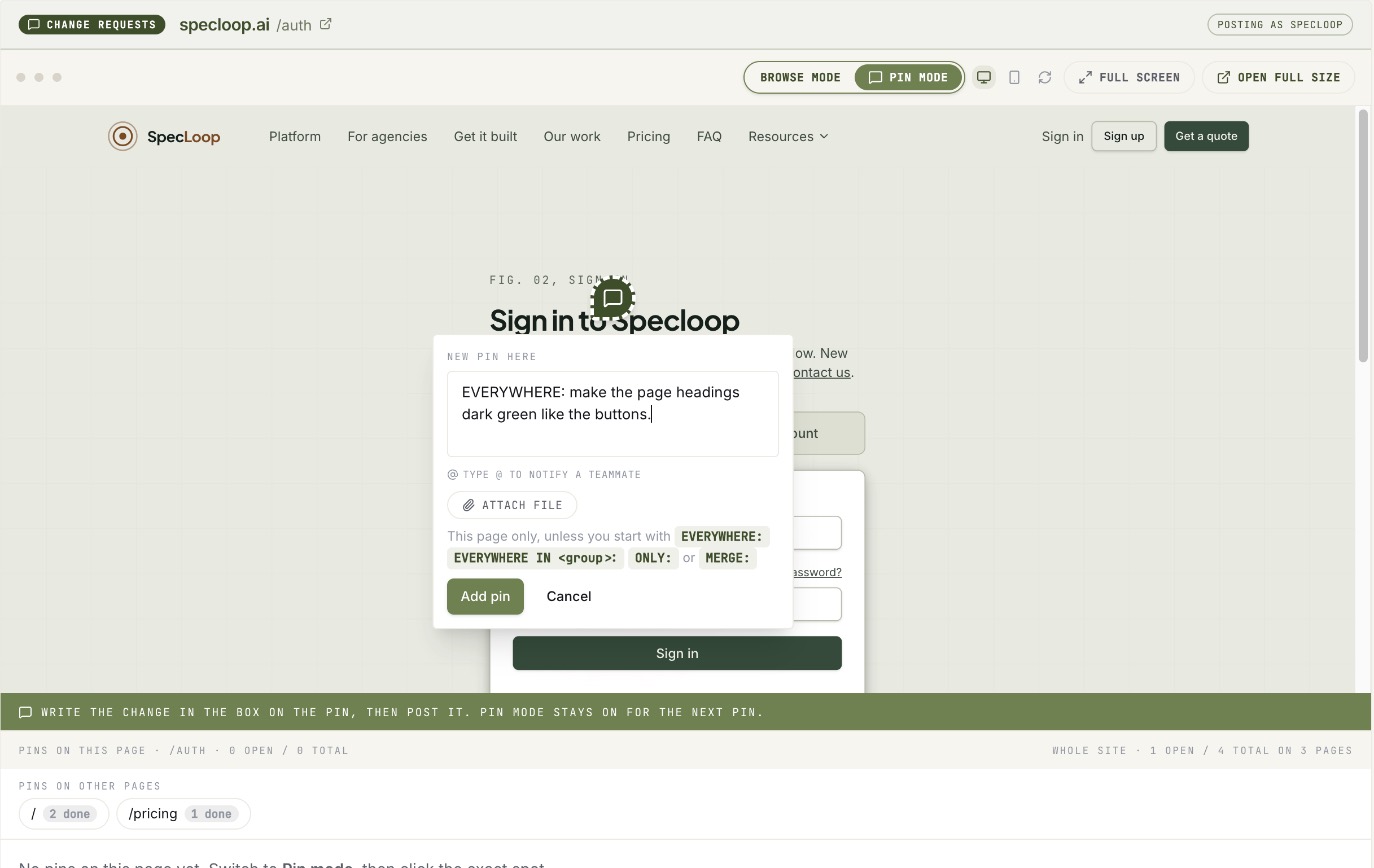
That's it. The pin sits on that spot of that page, and nobody has to guess.
Desktop and mobile, page by page
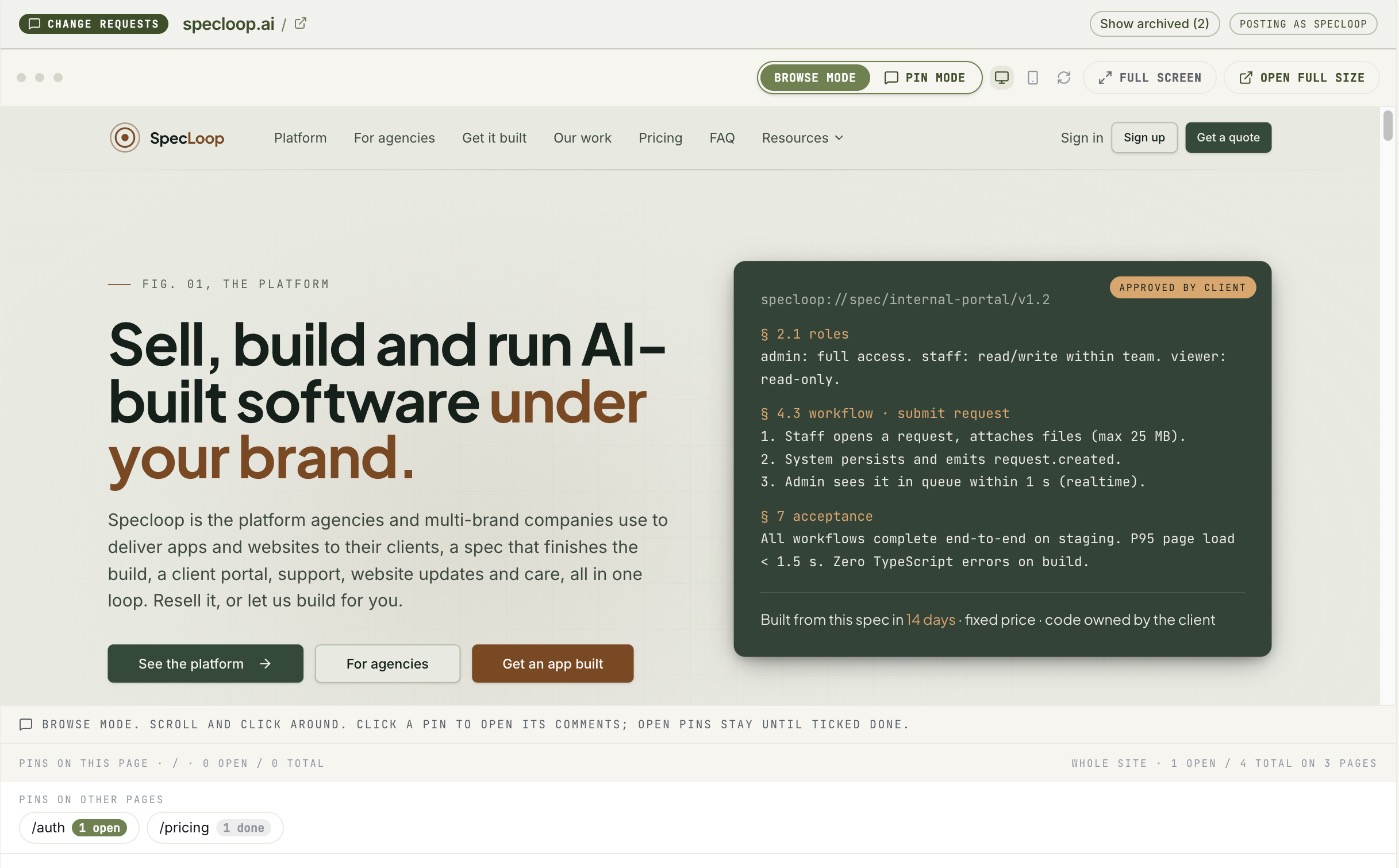
A change that looks right on a laptop can look wrong on a phone. The icons next to Pin mode switch the preview between desktop and mobile, and you can pin on whichever one you're looking at. Full screen takes the site edge to edge with your pins still on it, and Open full size opens it in its own tab.
Every page of the site keeps its own pins. Under the preview you'll see how many pins are on this page and across the whole site, and Pins on other pages lists each page with pins on it, one click away.
One word sets how far a change goes
Websites repeat themselves: the same button, the same heading style, the same phrase in the footer. When you pin one of them, do you mean this one, or all of them? Say so with the first word of your note:
- No keyword: change it on this page only.
- EVERYWHERE: change every instance across the whole site.
- EVERYWHERE IN a group of pages: change every instance in that family, for example all the thank-you pages.
- ONLY: change exactly this and nothing else on the page.
- MERGE: bring copy or images from your old site into the new design, without rebuilding the page to look like the old site.
The pin shows its scope as a label, and How to write a pin at the top of the page reminds everyone what each word means. One word saves a round of "did you mean just here?"
A conversation on every pin
Each pin is its own small thread. Our team can reply with a question, you can answer, and files can go back and forth right there. The whole discussion about that headline stays attached to that headline.
Every pin gets a permanent number. "Can you look at pin 14?" means the same thing on a call next month as it does today, because removing a pin never renumbers the others.
When a change is done
When we finish a pin, it's archived. It disappears from the preview, so the pins you can see are always what's still to do. Nothing is deleted: press Show archived above the preview to bring finished pins back as grey bubbles, with their full threads. If something isn't quite right, tell us on the pin and we'll reopen it.
What happens on our side
Every new pin and every reply sends our team an email, so nothing waits for someone to check a dashboard. The team sees every open pin across all projects in one list, with its page, its scope and its files, and can copy a project's pins as clear instructions for whoever is doing the work. More on that list is in our post on archived pins.
Tips
- One change per pin. Three changes in one pin is three things to track in one place.
- Start with the keyword. "EVERYWHERE: make the phone number bigger" is clearer than mentioning it at the end.
- Attach the real file. A new photo or logo attached to the pin beats a link to a shared drive.
- Use chat for decisions. Questions like "should we add a booking page?" belong in Support chat. Pins are for things you can point at.
If you're a Specloop client, open your project and choose Change requests to try it. If you're not yet, tell us about your site and we'll show you on your own pages.
Frequently asked
Questions people ask about this
- No. Change requests run inside the Specloop portal in your browser. Your site loads there and you click to pin.
About the author
Jason Gordon
Founder & CEO, Specloop
Jason Gordon is the founder of Specloop, a spec-driven AI development studio that builds production-grade business applications from a complete specification, in weeks, at flat rate, with 100% code ownership. He also builds GeoTest, a free tool that scores how visible a site is to AI search engines. He writes about AI search, spec-driven development, and why most AI builds never reach production.
Follow Jason on LinkedIn →Keep reading
Related posts
Product Updates
Client Chat That Lives Inside the Project, Not in Slack
Every Specloop project has its own chat, built into the same portal as the site preview and Change requests. Here is how to use it step by step, what it changes for a client and for the team, and why a shared Slack or Teams channel was never the right place for client work.

Product Updates
Copy Any Message, and Drop in as Many Files as You Like
Three small changes that save time every day: a copy button on every chat message, dragging several files into chat or Documents at once, and clickable links in call summaries and transcripts. Here is how to use each one.

Product Updates
Change Requests: Pins Now Tidy Themselves Away
The pin tool is now called Change requests, finished pins are archived instead of cluttering your preview, and the count next to it only counts what's still to do. Here is how to place a change request, follow it, and find it again once it's done.

Product Updates
Activity That Keeps You Posted, Automatically
Your project's Activity feed now fills itself. Every update to your site or app shows up as one plain-English line, every launch comes with a link, and finished change requests, calls and documents appear as they happen. Each Monday you get a one-line summary of the week. Here is where to find it and how to read it.
Next step
Want a spec for your build?
We write the full specification before any code is generated, then ship in 30–60 days at one flat rate. You own every line.